


🔢 Crown EA MT5: Complete Settings Guide and Configuration Explained
Crown EA MT5 is an automated trading Expert Advisor with configurable entry conditions, money management, grid trading, basket-level profit and loss controls, optional hedging, and trailing-stop functionality. Its settings include risk and drawdown thresholds, adjustable lot sizing, market-condition filters, trade limits, recovery mechanisms, and multiple exit-management options.
⚙️ Power Out Stop Settings
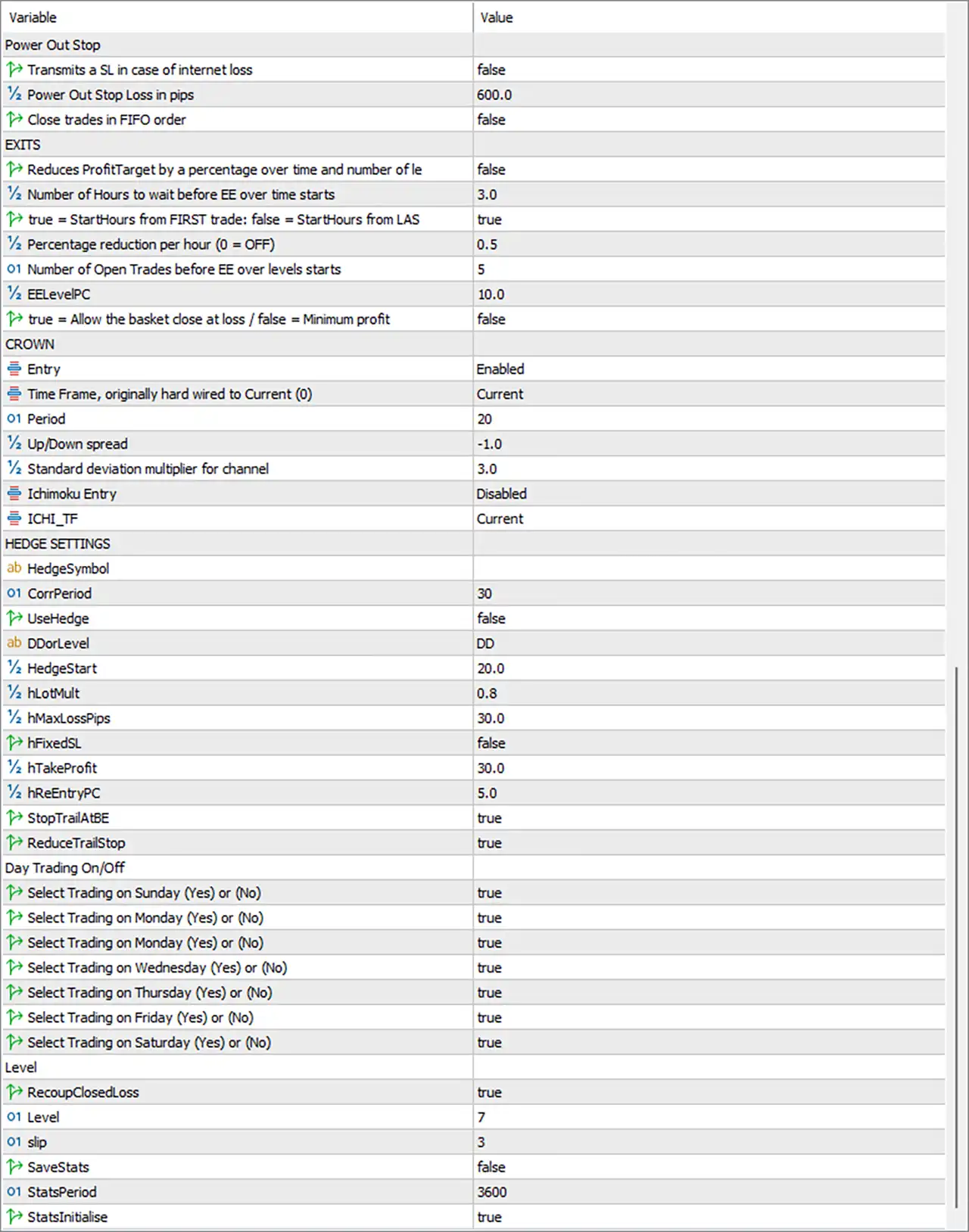
🔹 Power Out Stop = Section heading — Introduces the settings related to stop-loss protection during internet or connection interruptions.
🔹 Transmits a SL in case of internet loss = false — Disables the feature that transmits a stop-loss instruction when an internet connection is lost. With this setting disabled, the EA should not be assumed to send a protective stop specifically through this feature during a connection interruption.
🔹 Power Out Stop Loss in pips = 600.0 — Sets the power-out stop-loss distance to 600.0 pips. This value is relevant to the internet-loss protection feature, although that feature is currently disabled. The actual price distance depends on the instrument’s pip convention and the EA’s implementation.
🔹 Close trades in FIFO order = false — Disables FIFO (First In, First Out) trade-closing behavior within the associated feature. When enabled, FIFO logic generally closes the oldest eligible position first. Broker-specific FIFO requirements may still apply independently of this EA setting.
⚙️ Exit and Profit Target Management
🔹 EXITS = Section heading — Introduces the settings associated with profit-target adjustment and basket-level exit behavior.
🔹 Reduces ProfitTarget by a percentage over time and number of le = false — Disables the feature that reduces the profit target over time and according to the number of trades or levels. The original label is truncated after number of le, so the precise wording and calculation cannot be confirmed from the displayed input.
🔹 Number of Hours to wait before EE over time starts = 3.0 — Sets the waiting period before the associated EE-over-time mechanism begins to 3.0 hours. This parameter may determine how long the EA waits before applying time-dependent exit adjustments.
🔹 true = StartHours from FIRST trade: false = StartHours from LAS = true — Selects the timing reference for the associated start-hours calculation. With the value set to true, the timer is referenced to the first trade rather than the last trade, according to the visible label. The original text is truncated after LAS, but the intended contrast appears to be between the first and last trade.
🔹 Percentage reduction per hour (0 = OFF) = 0.5 — Sets the profit-target reduction rate to 0.5 per hour. The label indicates that a value of 0 disables this reduction. Since the main reduction feature is currently disabled, this value may remain inactive until that feature is enabled.
🔹 Number of Open Trades before EE over levels starts = 5 — Sets the open-trade threshold to 5 before the associated EE-over-levels mechanism begins. The exact behavior of the EE mechanism is not fully specified by the label, so this should be verified before relying on it for exit management.
🔹 EELevelPC = 10.0 — Sets the EE level percentage parameter to 10.0. This likely represents a percentage used by the associated exit or equity-management logic, but its exact calculation and reference value are implementation-specific.
🔹 true = Allow the basket close at loss / false = Minimum profit = false — Disables permission for the basket to close at a loss under this setting. The label indicates that true allows a loss-making basket to close, while false applies a minimum-profit condition. Confirm how the minimum-profit threshold is calculated and whether other exit rules can override this behavior.
⚙️ CROWN Entry Settings
🔹 CROWN = Section heading — Identifies the CROWN entry-strategy section.
🔹 Entry = Enabled — Enables the CROWN entry module. The EA can evaluate this module’s entry conditions when the remaining required filters and trading restrictions permit it.
🔹 Time Frame, originally hard wired to Current (0) = Current — Selects the current chart timeframe for the CROWN module. The label notes that the timeframe was originally hard-wired to Current (0), so the selected value uses the chart’s current timeframe rather than a separately specified timeframe.
🔹 Period = 20 — Sets the period parameter to 20 bars. In conjunction with the channel settings below, this may define the lookback used to calculate the relevant price channel or entry reference.
🔹 Up/Down spread = -1.0 — Sets the up/down spread parameter to -1.0. Because the value is negative, it may represent a special mode or default setting rather than an ordinary positive distance. Its exact interpretation should be confirmed through the EA’s documentation or testing.
🔹 Standard deviation multiplier for channel = 3.0 — Sets the channel standard-deviation multiplier to 3.0. If the channel uses a standard-deviation calculation, this multiplier determines how far its boundaries extend relative to measured price variation. A larger multiplier generally produces wider channel boundaries.
🔹 Ichimoku Entry = Disabled — Disables the Ichimoku-based entry filter. The CROWN entry module is therefore not configured to require this specific Ichimoku entry condition through the displayed switch.
🔹 ICHI_TF = Current — Sets the Ichimoku timeframe parameter to Current. Because Ichimoku Entry is disabled, this timeframe may not affect current entry decisions unless another part of the EA uses it.
⚙️ Hedge Settings
🔹 HEDGE SETTINGS = Section heading — Introduces the optional hedging and hedge-position management inputs.
🔹 HedgeSymbol = blank — Specifies the symbol used by the hedging feature, but no value is displayed. The EA may use an automatic symbol selection or require a symbol to be entered, depending on its implementation. Since UseHedge is currently false, this field may not affect active trading.
🔹 CorrPeriod = 30 — Sets the correlation-analysis period to 30. If the hedging feature uses correlation analysis, this value defines the number of observations or bars used to evaluate the relationship between the primary and hedge instruments.
🔹 UseHedge = false — Disables the hedging feature. The EA is not configured to activate its optional hedge mechanism through this switch, although the remaining hedge parameters are still available for configuration.
🔹 DDorLevel = DD — Selects DD as the mode for the associated hedge trigger or decision parameter. The label suggests a choice involving drawdown versus a level-based condition, but the exact alternatives and calculation are not displayed.
🔹 HedgeStart = 20.0 — Sets the hedge activation threshold to 20.0. This may define the level at which hedging is considered, depending on whether the EA uses drawdown or another threshold. The unit and reference point are not specified in the label.
🔹 hLotMult = 0.8 — Sets the hedge lot multiplier to 0.8. If the hedge module is activated, this may calculate hedge volume as a proportion of the relevant primary position or lot size. For example, a direct multiplier calculation on a 0.10-lot reference would produce 0.08 lots before broker-volume adjustments.
🔹 hMaxLossPips = 30.0 — Sets the hedge-related maximum loss parameter to 30.0 pips. This may define a loss threshold for the hedge position or hedge-management mechanism. Its exact scope should be verified before enabling the feature.
🔹 hFixedSL = false — Disables the fixed stop-loss option for hedge positions. The hedge module is not configured to use this particular fixed-SL mode, though other hedge exit mechanisms may still exist.
🔹 hTakeProfit = 30.0 — Sets the hedge take-profit parameter to 30.0. This may represent a pip-based target for hedge positions, but the unit should be confirmed from the EA’s implementation.
🔹 hReEntryPC = 5.0 — Sets the hedge re-entry parameter to 5.0. The suffix PC may indicate a percentage-related threshold, but the exact formula is not specified. It may control when the EA considers another hedge entry after a previous hedge action.
🔹 StopTrailAtBE = true — Enables the option to stop or adjust trailing management at breakeven, according to the EA’s programmed rules. This may help prevent further trailing adjustments once the relevant position reaches its entry-price reference.
🔹 ReduceTrailStop = true — Enables the option to reduce the trailing-stop setting or distance under the associated conditions. The exact reduction formula and trigger are not identified in the label.
⚙️ Day Trading On/Off
🔹 Day Trading On/Off = Section heading — Introduces the weekday and weekend trading controls.
🔹 Select Trading on Sunday (Yes) or (No) = true — Enables Sunday trading under this setting. Actual trading still depends on the broker’s market hours, available liquidity, and the EA’s other entry conditions.
🔹 Select Trading on Monday (Yes) or (No) = true — Enables Monday trading.
🔹 Select Trading on Monday (Yes) or (No) = true — A second input is also labeled for Monday and is set to true. The displayed panel repeats the Monday label, so it is unclear whether this row was intended to represent Tuesday. The original label and value are preserved here; verify the EA input name before relying on a separate Tuesday control.
🔹 Select Trading on Wednesday (Yes) or (No) = true — Enables Wednesday trading.
🔹 Select Trading on Thursday (Yes) or (No) = true — Enables Thursday trading.
🔹 Select Trading on Friday (Yes) or (No) = true — Enables Friday trading.
🔹 Select Trading on Saturday (Yes) or (No) = true — Enables Saturday trading. Since weekend market availability varies by instrument and broker, an enabled switch does not guarantee that orders can be executed on Saturday.
⚙️ Recovery and Statistics Settings
🔹 Level = Section heading — Introduces the recovery-level and statistics-related controls.
🔹 RecoupClosedLoss = true — Enables the feature associated with recovering or recouping previously closed losses. The exact recovery calculation is not specified, so this should not be interpreted as a guarantee that earlier losses will be recovered.
🔹 Level = 7 — Sets the associated level parameter to 7. This may define a recovery level, threshold, or stage used by the EA. Its exact role depends on the recovery logic.
🔹 slip = 3 — Sets the slippage-related parameter to 3. The unit is not stated explicitly, but it may represent points used by the order-execution logic to control or evaluate price deviation.
🔹 SaveStats = false — Disables the statistics-saving feature. The EA is not configured to save the associated statistics through this switch.
🔹 StatsPeriod = 3600 — Sets the statistics period parameter to 3600. This value equals one hour in seconds, but whether the EA interprets it as a duration in seconds or another internal unit should be confirmed.
🔹 StatsInitialise = true — Enables initialization of the statistics component. This may instruct the EA to initialize its internal statistical variables or tracking mechanism when the relevant module starts.
⚙️ EA Identity and Emergency Controls
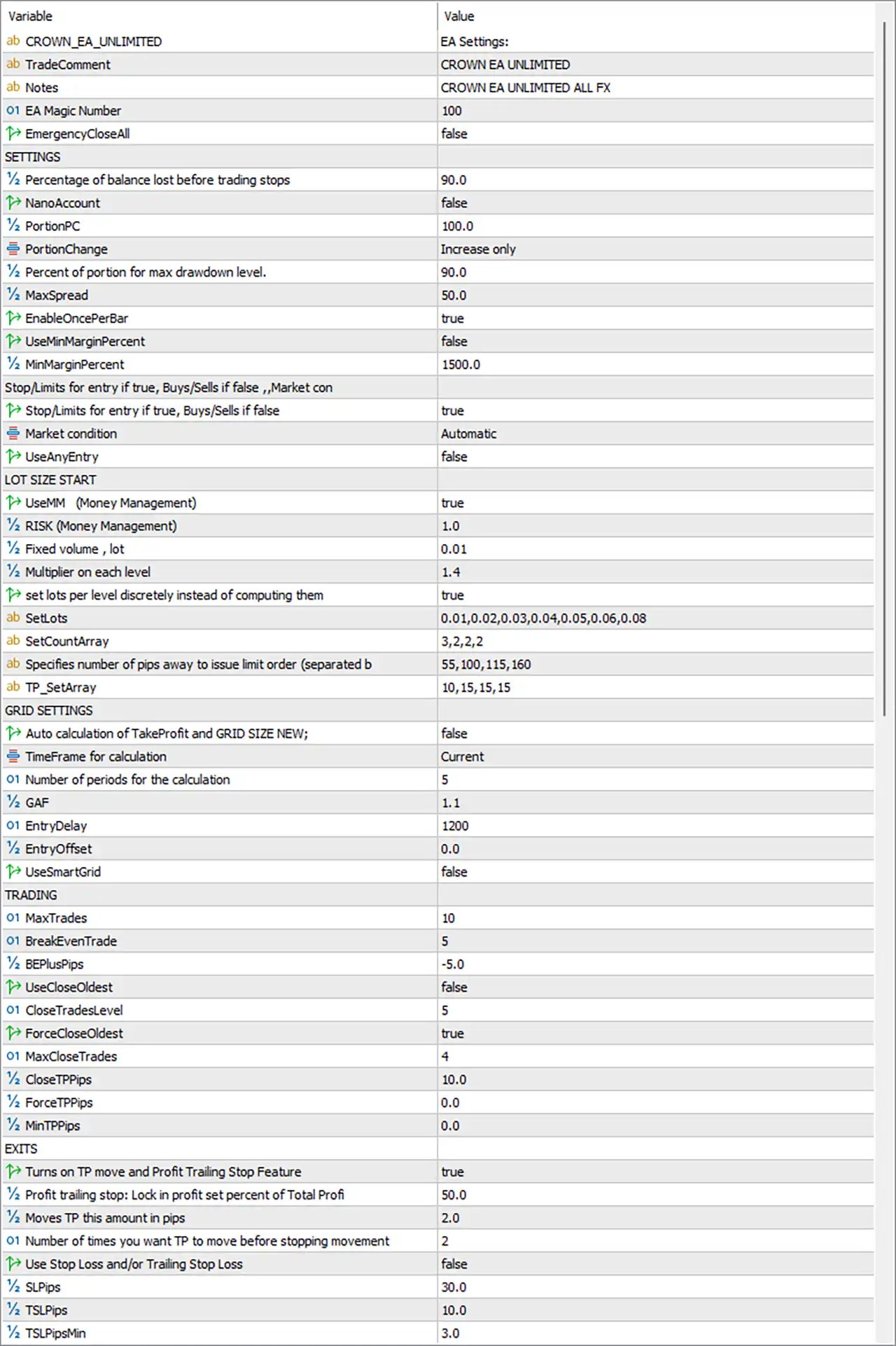
🔹 CROWN_EA_UNLIMITED = EA Settings: — Displays the EA settings section heading and identifies the configuration block as EA Settings:.
🔹 TradeComment = CROWN EA UNLIMITED — Sets the order comment to CROWN EA UNLIMITED. This text can help identify the EA’s trades in the MetaTrader terminal and in exported trade histories.
🔹 Notes = CROWN EA UNLIMITED ALL FX — Sets the notes field to CROWN EA UNLIMITED ALL FX. This is descriptive text and does not, by itself, establish that every Forex instrument is supported or enabled.
🔹 EA Magic Number = 100 — Assigns the EA Magic Number 100. This identifier helps distinguish trades managed by this EA from other trades, provided the EA’s order-management logic uses it consistently.
🔹 EmergencyCloseAll = false — Disables the emergency close-all switch. The EA is not configured to trigger its emergency close-all behavior through this parameter. Other stop-loss, profit-target, or broker-side protections may still operate independently.
⚙️ General Risk and Account Settings
🔹 SETTINGS = Section heading — Introduces the general account, risk, spread, and entry-control parameters.
🔹 Percentage of balance lost before trading stops = 90.0 — Sets the balance-loss threshold to 90.0, generally indicating a 90% threshold if interpreted as a percentage. The exact reference balance, whether equity is also considered, and whether this stops new entries or closes existing positions depend on the EA’s implementation. A threshold this high may allow severe losses before activation and should be reviewed carefully.
🔹 NanoAccount = false — Disables the Nano-account mode. The EA is not configured to use its specific Nano-account handling through this switch.
🔹 PortionPC = 100.0 — Sets the portion parameter to 100.0, generally interpreted as 100% when used as a percentage. It may define the proportion of balance or capital used by an associated account-management calculation.
🔹 PortionChange = Increase only — Selects the Increase only mode for portion changes. Under this mode, the relevant portion is intended to increase rather than decrease when the EA adjusts it, subject to the internal rules.
🔹 Percent of portion for max drawdown level. = 90.0 — Sets the portion-related maximum drawdown threshold to 90.0. This likely defines a percentage threshold used by the EA’s drawdown or portion-management logic. Confirm how it interacts with the separate 90.0 balance-loss setting to avoid misunderstanding the account protection behavior.
🔹 MaxSpread = 50.0 — Sets the maximum spread threshold to 50.0. If the EA enforces this parameter as a spread filter, it may block new entries when the spread exceeds the configured value. Confirm whether the value is measured in points and how it is converted for the traded instrument.
🔹 EnableOncePerBar = true — Enables the once-per-bar entry restriction. This typically limits the relevant entry logic to one evaluation or entry event per candle, helping reduce repeated entries within the same bar. The precise behavior depends on how the EA implements the restriction.
🔹 UseMinMarginPercent = false — Disables the minimum-margin-percentage filter. The EA is not configured to use the separate minimum margin threshold through this switch.
🔹 MinMarginPercent = 1500.0 — Sets the minimum margin percentage to 1500.0. This value may be used when UseMinMarginPercent is enabled. Since that switch is currently false, the threshold may not be active.
⚙️ Entry Type and Market Conditions
🔹 Stop/Limits for entry if true, Buys/Sells if false „Market con = Section heading — Displays a truncated description of the entry-order selection. The visible text contrasts stop/limit entry orders with buy/sell market orders, but the remainder of the heading is not shown.
🔹 Stop/Limits for entry if true, Buys/Sells if false = true — Enables the stop/limit entry mode according to the input label. This suggests the EA uses pending stop or limit orders rather than immediate market buy/sell orders, subject to the strategy’s specific order-placement logic.
🔹 Market condition = Automatic — Selects automatic market-condition handling. The EA is configured to determine the relevant market condition automatically rather than relying on a manually selected condition.
🔹 UseAnyEntry = false — Disables the option associated with unrestricted or alternative entry selection. The exact scope of AnyEntry is not specified, but the current configuration does not enable this mode.
⚙️ Lot Size Start and Money Management
🔹 LOT SIZE START = Section heading — Introduces the initial lot-sizing and money-management settings.
🔹 UseMM (Money Management) = true — Enables the EA’s money-management feature. The EA can apply its configured risk and lot-sizing logic rather than relying solely on a manually fixed volume, depending on how the selected mode is implemented.
🔹 RISK (Money Management) = 1.0 — Sets the money-management risk parameter to 1.0, generally representing 1% if the EA interprets this input as a percentage. The actual volume and monetary exposure depend on the lot-sizing formula, stop-loss configuration, and account conditions.
🔹 Fixed volume, lot = 0.01 — Sets the fixed trading volume to 0.01 lots. This may serve as the fallback or manually configured lot size, depending on how the EA applies UseMM and its risk calculation.
🔹 Multiplier on each level = 1.4 — Sets the lot multiplier for each level to 1.4. If the EA uses multiplier-based progression, each subsequent level may increase the lot size relative to the preceding level by this factor. This can increase cumulative exposure and potential losses when multiple levels are opened.
🔹 set lots per level discretely instead of computing them = true — Enables discrete lot sizing by level instead of calculating each level’s volume solely through a formula. When enabled, the EA is expected to use the volumes specified in SetLots according to the associated level and count logic.
🔹 SetLots = 0.01,0.02,0.03,0.04,0.05,0.06,0.08 — Defines the discrete lot-size sequence as 0.01, 0.02, 0.03, 0.04, 0.05, 0.06, and 0.08 lots. These values may be assigned to successive levels or groups according to the EA’s internal level mapping.
🔹 SetCountArray = 3,2,2,2 — Sets the count array to 3,2,2,2. This appears to define how many orders or levels are assigned to different groups in the discrete lot-sizing or grid logic. The exact relationship between these four counts and the seven SetLots values should be verified.
🔹 Specifies number of pips away to issue limit order (separated b = 55,100,115,160 — Sets the limit-order distance sequence to 55,100,115,160. The original input name is truncated after separated b; the visible description indicates that the values represent pip distances used to issue limit orders. The EA’s mapping between the four distances and the order levels should be confirmed.
🔹 TP_SetArray = 10,15,15,15 — Defines a take-profit sequence of 10,15,15,15. These values likely represent take-profit settings assigned to different levels or groups in the strategy. The unit and mapping depend on the EA’s implementation.
⚙️ Grid Settings
🔹 GRID SETTINGS = Section heading — Introduces the grid-related parameters used to manage order spacing and grid calculations.
🔹 Auto calculation of TakeProfit and GRID SIZE NEW; = false — Disables automatic calculation of take-profit and new grid size. With this setting disabled, the EA is not configured to use this particular automatic recalculation mode.
🔹 TimeFrame for calculation = Current — Selects the current chart timeframe for grid-related calculations. The timeframe may affect any price or volatility measurements used by the grid algorithm.
🔹 Number of periods for the calculation = 5 — Sets the calculation period count to 5 bars. This determines the amount of recent chart data used by the associated calculation, subject to the EA’s implementation.
🔹 GAF = 1.1 — Sets the GAF parameter to 1.1. The exact expansion factor or calculation represented by GAF is not defined in the visible label, so its effect on grid spacing or target calculations should be confirmed.
🔹 EntryDelay = 1200 — Sets the entry-delay parameter to 1200. This may represent a delay before the EA issues a new entry, but the unit—such as seconds, milliseconds, or another internal measure—is not specified by the label.
🔹 EntryOffset = 0.0 — Sets the entry offset to 0.0. This indicates that no additional offset is configured through this parameter. The effect depends on whether the EA measures offset in pips, points, or another price unit.
🔹 UseSmartGrid = false — Disables the Smart Grid feature. The EA is not configured to use this specific grid-management mode, although other grid-related settings remain available.
⚙️ Trading and Position Management
🔹 TRADING = Section heading — Introduces the trade-count, breakeven, and position-closing settings.
🔹 MaxTrades = 10 — Sets the maximum trade count to 10. The exact scope depends on whether the EA counts open positions, pending orders, or trades within a particular grid or basket.
🔹 BreakEvenTrade = 5 — Sets the breakeven-related trade threshold to 5. This may define the trade count or level at which the EA activates breakeven management. The precise trigger should be verified through testing.
🔹 BEPlusPips = -5.0 — Sets the breakeven offset parameter to -5.0 pips. The negative value may place the relevant stop or breakeven reference on the loss side of the entry price, or it may be interpreted differently by the EA. Confirm the exact behavior before relying on it for capital protection.
🔹 UseCloseOldest = false — Disables the option to close the oldest trade through this specific feature. The EA is not configured to use this particular oldest-position closing rule.
🔹 CloseTradesLevel = 5 — Sets the trade-closing level to 5. This may specify the level or trade count at which the corresponding closing rule becomes active. Its exact interaction with UseCloseOldest and other close controls depends on the implementation.
🔹 ForceCloseOldest = true — Enables the force-close-oldest option. When its activation conditions are met, the EA may force the closure of the oldest eligible position. The exact trigger and priority relative to other exit rules should be confirmed.
🔹 MaxCloseTrades = 4 — Sets the maximum number of trades to close through the associated closing routine to 4. This may limit how many positions can be closed in one operation or closing cycle.
🔹 CloseTPPips = 10.0 — Sets the close take-profit parameter to 10.0 pips. This may specify a profit threshold used by the trade-closing logic. Confirm whether the threshold applies to individual positions, a group of trades, or a basket.
🔹 ForceTPPips = 0.0 — Sets the forced take-profit parameter to 0.0 pips. Zero may disable this specific forced take-profit mechanism, depending on how the EA interprets the input.
🔹 MinTPPips = 0.0 — Sets the minimum take-profit parameter to 0.0 pips. This may mean that no positive minimum TP threshold is enforced through this parameter, although other target and closing rules may still apply.
⚙️ Exit and Profit Trailing Settings
🔹 EXITS = Section heading — Introduces the take-profit movement, profit trailing, and stop-loss controls.
🔹 Turns on TP move and Profit Trailing Stop Feature = true — Enables the feature that moves take-profit levels and uses profit trailing-stop management. This allows the EA to adjust the target or trailing behavior as trades progress, according to its programmed rules.
🔹 Profit trailing stop: Lock in profit set percent of Total Profi = 50.0 — Sets the profit-locking percentage to 50.0. The label is truncated after Total Profi, but it indicates that the trailing-stop feature locks in a percentage of total profit. The precise reference value and calculation should be confirmed.
🔹 Moves TP this amount in pips = 2.0 — Sets the take-profit adjustment increment to 2.0 pips. When the TP-movement feature is active, the EA may move the target by this amount during each qualifying adjustment.
🔹 Number of times you want TP to move before stopping movement = 2 — Limits the number of take-profit movements to 2. Once the configured number of movements has occurred, the EA may stop adjusting the TP through this feature.
🔹 Use Stop Loss and/or Trailing Stop Loss = false — Disables the stop-loss and/or trailing-stop-loss feature controlled by this switch. Consequently, the associated SLPips, TSLPips, and TSLPipsMin settings may not be active through this particular feature, although other stop mechanisms can still exist.
🔹 SLPips = 30.0 — Sets the stop-loss distance parameter to 30.0 pips. Since the associated stop-loss feature is disabled, this value may not currently be applied by that feature.
🔹 TSLPips = 10.0 — Sets the trailing-stop-loss distance parameter to 10.0 pips. It may define the trailing distance when the relevant stop-loss feature is enabled.
🔹 TSLPipsMin = 3.0 — Sets the minimum trailing-stop-loss distance to 3.0 pips. This may establish a lower boundary for trailing-stop distance calculations when the relevant feature is active.
🔢 Conclusion
The displayed Crown EA MT5 configuration includes a CROWN entry module with Entry = Enabled, a current timeframe, a period of 20, and a standard-deviation channel multiplier of 3.0. The Ichimoku entry filter is disabled. The optional hedge module is also disabled, while its settings remain configured with a correlation period of 30, hedge start of 20.0, lot multiplier of 0.8, maximum hedge loss of 30.0 pips, and hedge take profit of 30.0.
The account and trading controls include Magic Number 100, risk parameter 1.0, fixed volume 0.01, a lot multiplier of 1.4, and a maximum trade count of 10. Discrete lot sizing is enabled with the sequence 0.01,0.02,0.03,0.04,0.05,0.06,0.08, while the grid’s automatic TP and size calculation and Smart Grid are disabled. The profit-target movement and profit trailing-stop feature is enabled, but the separate stop-loss and trailing-stop-loss switch is disabled.
Several settings require particular attention before live deployment. The 90.0 balance-loss threshold and 90.0 portion drawdown threshold may permit severe losses depending on how they are interpreted. Grid and recovery features can increase cumulative exposure, and the maximum of 10 trades does not necessarily cap the monetary loss to a safe level. Confirm all threshold units, the duplicate Monday-labeled day control, and the exact behavior of the basket exit logic through backtesting and demo trading.


