


🔢 Orion MT5: Complete EA Settings Guide and Configuration Explained
Orion MT5 is an automated trading Expert Advisor with configurable risk management, take-profit and stop-loss levels, Parabolic SAR (SAR) parameters, trailing-stop protection, trading-hour restrictions, and execution filters. Its settings allow traders to adjust risk exposure, define trade exit targets, control trailing-stop behavior, and restrict trading to a specific time window.
The configuration includes a risk parameter, a fallback lot size, SAR-step settings, slippage and spread limits, and a Magic Number for trade identification. This guide explains every visible input and preserves the original parameter names, numerical values, and Boolean settings.
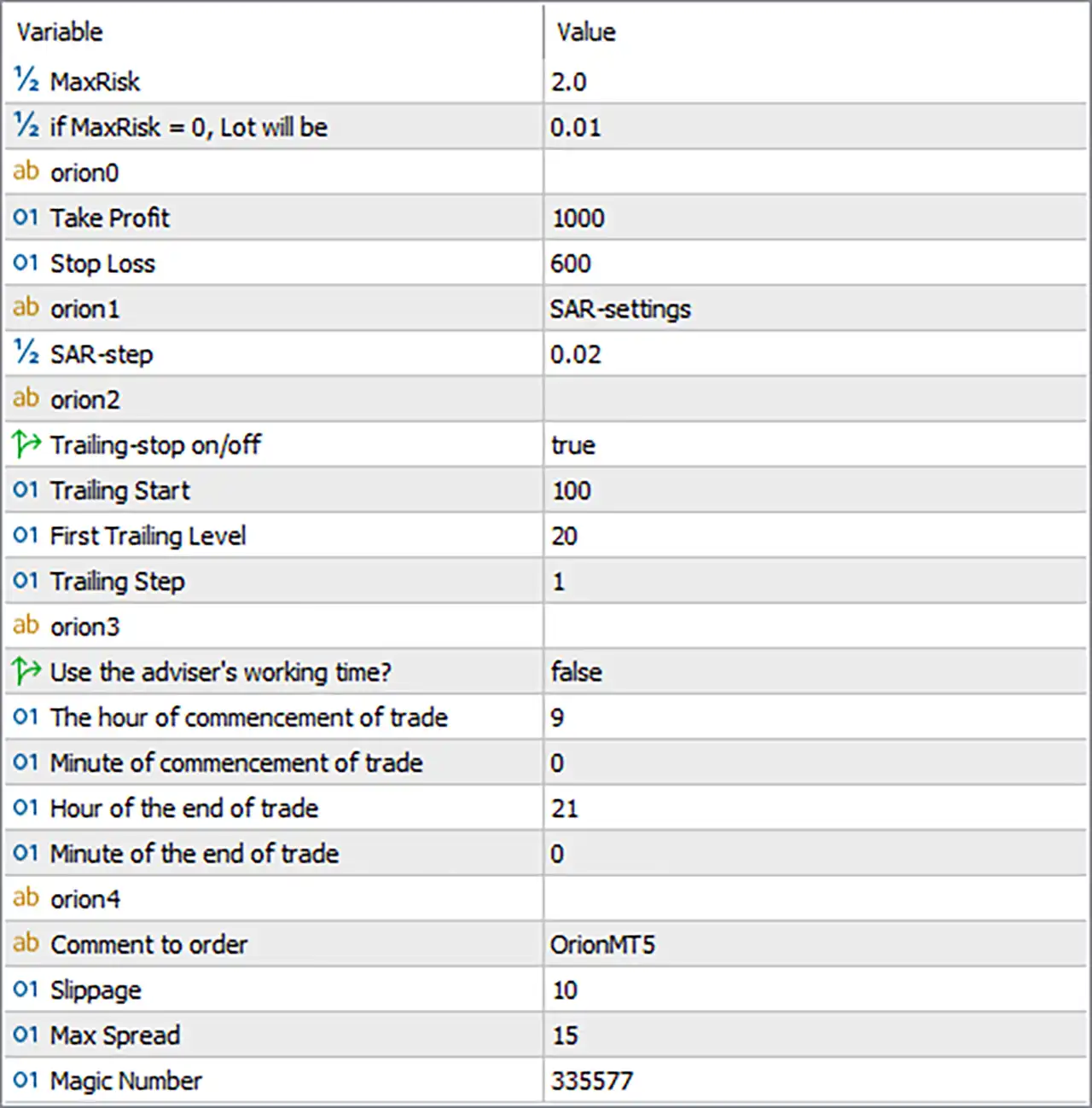
⚙️ Risk Management and Trade Targets
🔹 MaxRisk = 2.0 — Sets the maximum-risk parameter to 2.0. This may represent a risk percentage or another risk-management value, depending on the EA’s internal calculation. Verify whether it means 2% risk per trade, total account risk, or another measure before live trading.
🔹 if MaxRisk = 0, Lot will be = 0.01 — Sets the fallback lot size to 0.01 when MaxRisk is set to 0. Since the current MaxRisk value is 2.0, the fallback condition is not selected according to the input label.
🔹 orion0 = Section heading — Identifies a configuration section for the primary trade targets. No separate value is displayed for this heading.
🔹 Take Profit = 1000 — Sets the take-profit parameter to 1000. This defines the configured profit target or target distance according to the EA’s implementation. The unit is not specified, so confirm whether it represents points, pips, or another measurement.
🔹 Stop Loss = 600 — Sets the stop-loss parameter to 600. This configures the intended loss-protection threshold or stop distance. The actual price distance depends on the unit used by the EA and the broker’s symbol specifications.
⚙️ Parabolic SAR Settings
🔹 orion1 = SAR-settings — Identifies the Parabolic SAR configuration section. It serves as a descriptive heading for the SAR-related parameter below.
🔹 SAR-step = 0.02 — Sets the SAR step to 0.02. In the Parabolic SAR indicator, the step controls how quickly the indicator’s acceleration factor increases as a trend develops. The EA may use this value to calculate SAR levels for signal generation or trade management.
⚙️ Trailing-Stop Settings
🔹 orion2 = Section heading — Identifies the section containing trailing-stop configuration parameters.
🔹 Trailing-stop on/off = true — Enables trailing-stop management. When the relevant activation conditions are met, the EA can adjust stop-loss levels as price moves favorably, potentially helping protect unrealized profits.
🔹 Trailing Start = 100 — Sets the trailing-stop activation threshold to 100 units. Trailing management may begin once the EA’s required profit or price movement reaches this threshold. Confirm the unit and exact activation rule.
🔹 First Trailing Level = 20 — Sets the first trailing level to 20. This may define the initial stop adjustment or the first stage of trailing management after activation. Its precise relationship to Trailing Start depends on the EA’s internal logic.
🔹 Trailing Step = 1 — Sets the trailing adjustment step to 1 unit. Depending on the EA’s implementation, this determines the increment used when updating the trailing stop. Confirm whether the value represents points, pips, or another measurement.
⚙️ Trading Time Settings
🔹 orion3 = Section heading — Identifies the trading-time configuration section.
🔹 Use the adviser's working time? = false — Disables the adviser’s predefined working-time schedule through this option. The manual start and end times below are therefore expected to apply if the EA follows the displayed input logic.
🔹 The hour of commencement of trade = 9 — Sets the trading start hour to 9, corresponding to 09:00 on a 24-hour clock.
🔹 Minute of commencement of trade = 0 — Sets the trading start minute to 0, making the configured start time 09:00.
🔹 Hour of the end of trade = 21 — Sets the trading end hour to 21, corresponding to 21:00 on a 24-hour clock.
🔹 Minute of the end of trade = 0 — Sets the trading end minute to 0, making the configured end time 21:00.
The configured manual trading window is 09:00–21:00, assuming the EA combines the hour and minute inputs and uses the same time reference throughout.
⚙️ Order Identification and Execution Settings
🔹 orion4 = Section heading — Identifies the final configuration section containing the order comment and execution-related parameters.
🔹 Comment to order = OrionMT5 — Sets the order comment to OrionMT5. This text may appear in trade details and history, helping identify positions associated with the EA.
🔹 Slippage = 10 — Sets the slippage parameter to 10. This commonly defines the permitted price deviation during order execution, often in points. The exact unit and behavior depend on the EA and broker’s execution rules.
🔹 Max Spread = 15 — Sets the maximum spread threshold to 15. If the EA uses this parameter as an entry filter, it may block new trades when the current spread exceeds the configured limit. Confirm the unit and how the spread is calculated for the selected instrument.
🔹 Magic Number = 335577 — Assigns the Magic Number 335577 to trades managed by Orion MT5. This identifier helps distinguish the EA’s trades from positions opened by other Expert Advisors or manually, provided the order-management logic uses Magic Numbers consistently.
🔢 Conclusion
The displayed Orion MT5 configuration uses MaxRisk = 2.0, a fallback lot size of 0.01 when the risk parameter is zero, a take-profit value of 1000, and a stop-loss value of 600. The Parabolic SAR step is set to 0.02, and trailing-stop management is enabled with a start threshold of 100, a first trailing level of 20, and a step of 1.
The manual trading schedule is configured from 09:00 to 21:00, while the adviser’s predefined working-time option is disabled. The execution settings include slippage of 10, a maximum spread of 15, order comment OrionMT5, and Magic Number 335577.
Before running Orion MT5 on a live account, confirm the units used for take profit, stop loss, trailing thresholds, slippage, and spread. Verify how MaxRisk = 2.0 translates into actual lot size and monetary exposure. Backtesting and demo trading are recommended to evaluate the EA’s behavior under the intended broker’s conditions.


