
Pro M1 Sniper MT5
Pro M1 SniperPro M1 Sniper MT5 OverviewM1 Sniper MT5 ReviewsM1 Sniper MT5 ReviewPro M1 Sniper MT5 ReviewsPro M1 Sniper MT5 Review
Updated 30 Sept 2026

Pro M1 Sniper MT5 Unlimited

Pro M1 Sniper is an indicator that integrates trend direction, pullback signals, adaptive TP and SL levels, volatility zones, and Gann analysis into a single tool on the MT5 chart.

Buy now — $59Add to cart
Download link right after paymentUnlimited accounts, no licence lockInstall guide includedFree updates to new versions
Pay with Visa · MastercardUSDT · BTC · ETHBinance Pay
Not sure it fits your broker or account?Ask a question
What you get

In the download

COMPro M1 Sniper MT5 by eafxstore.com
Optimize Settings

Recommended settings for Pro M1 Sniper MT5 Unlimited

🔢 Pro M1 Sniper MT5 – Simple Inputs Guide

This guide explains the Pro M1 Sniper MT5 settings in a simple and easy-to-read format.

The indicator is designed for M1 scalping and combines Dynamic Support & Resistance, Sniper signals, Gann angles, volatility zones, and adaptive TP/SL levels.
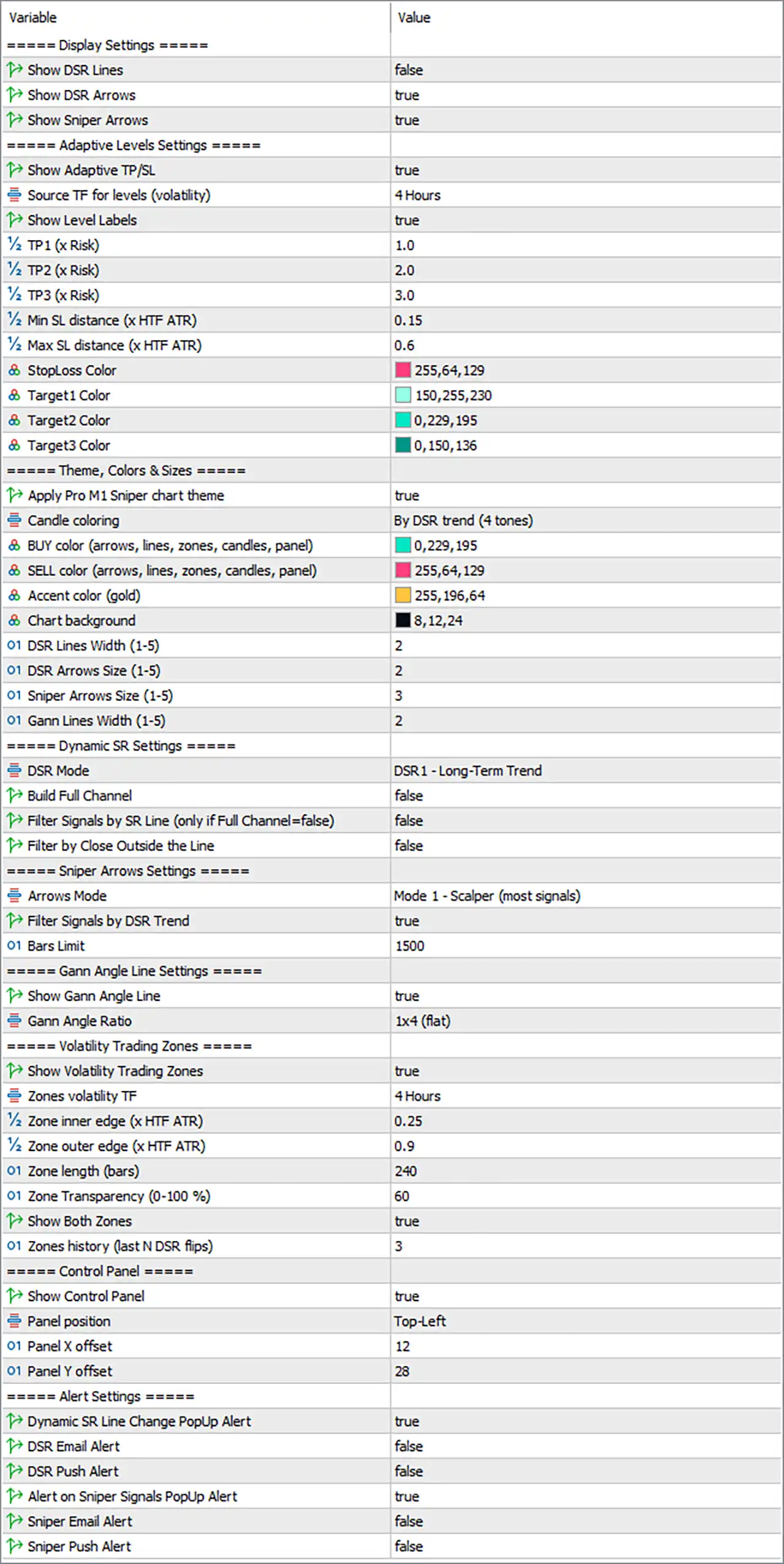
Pro M1 Sniper MT5 Settings Panel

🔢 Installation

🔹 Open MetaTrader 5.

🔹 Go to File → Open Data Folder.

🔹 Open MQL5 → Indicators.

🔹 Copy Pro M1 Sniper MT5.mq5 or the compiled .ex5 file into the folder.

🔹 If using the .mq5 source, open MetaEditor with F4 and press F7 to compile.

🔹 Return to MT5.

🔹 Right-click Indicators in Navigator and select Refresh.

🔹 Drag Pro M1 Sniper MT5 onto a chart.

🔹 M1 is the recommended timeframe.

🔹 Enable Allow DLL imports if the TELEGRAM and WEB buttons need to open a browser.

🔹 Adjust the Inputs and click OK.

🔹 DLL Imports — DLL access is only required for the TELEGRAM and WEB buttons. The indicator itself can work normally without DLL imports.

🔢 Strategy Tester

The indicator can also be tested in the MT5 Strategy Tester.

🔹 Program Type — Select Indicator.

🔹 Indicator — Select Pro M1 Sniper MT5.

🔹 Timeframe — Use M1 for the main setup.

🔹 Model — Use Every tick based on real ticks or Every tick.

🔹 Visual Mode — Enable Visual mode and press Start.

The indicator uses its own chart theme and candles, so the tester appearance matches the live chart.

🔢 Display Settings

These settings control the main signal layers shown on the chart.

🔹 Show DSR Lines — Default: false — Shows the Dynamic Support and Resistance lines. Recommended: false for a cleaner chart.

The trend is still calculated even when the lines are hidden.

🔹 Show DSR Arrows — Default: true — Shows arrows when the DSR trend changes. Recommended: true.

🔹 Show Sniper Arrows — Default: true — Shows the main Sniper BUY and SELL entry arrows. Recommended: true.

Simple Idea: DSR arrows show trend changes, while Sniper arrows show the main entry signals.

🔢 Adaptive Levels Settings

These settings control Entry, Stop Loss, and Take Profit levels.

🔹 Show Adaptive TP/SL — Default: true — Shows Entry, SL, TP1, TP2, and TP3 levels for the latest Sniper signal. Recommended: true.

The levels are still calculated for the panel and statistics even when hidden.

🔹 Source TF for Levels (Volatility) — Default: H4 — Selects the timeframe used for ATR(14) when calculating stop distance and scaling the Gann line. Recommended: H4.

If the current or a lower timeframe is selected, the indicator automatically uses the next higher timeframe.

🔹 Show Level Labels — Default: true — Displays ENTRY, SL, TP1, TP2, and TP3 price labels. Recommended: true.

🔹 TP1 (x Risk) — Default: 1.0 — Sets TP1 as a multiple of the risk distance. Recommended: 1.0.

1.0 means approximately 1:1 reward-to-risk.

🔹 TP2 (x Risk) — Default: 2.0 — Sets TP2 as a multiple of the risk distance. Recommended: 2.0.

🔹 TP3 (x Risk) — Default: 3.0 — Sets TP3 as a multiple of the risk distance. Recommended: 3.0.

🔹 Min SL Distance (x HTF ATR) — Default: 0.15 — Sets the minimum allowed SL distance as a fraction of the higher-timeframe ATR. Recommended: 0.15.

🔹 Max SL Distance (x HTF ATR) — Default: 0.60 — Sets the maximum allowed SL distance as a fraction of the higher-timeframe ATR. Recommended: 0.60.

🔹 StopLoss Color — Default: Pink (255,64,129) — Controls the SL line and label colour.

🔹 Target1 Color — Default: Light aqua (150,255,230) — Controls the TP1 line and label colour.

🔹 Target2 Color — Default: Aqua (0,229,195) — Controls the TP2 line and label colour.

🔹 Target3 Color — Default: Deep teal (0,150,136) — Controls the TP3 line and label colour.

How the Stop Loss Is Calculated

The indicator calculates the SL using the signal candle and higher-timeframe ATR.

🔹 Stop Loss — Calculated beyond the signal candle plus 10% of HTF ATR, then limited between the minimum and maximum SL distance.

🔹 Risk R — R = |Entry - SL|

🔹 Take Profit — TPn = Entry +/- (TPn multiplier × R)

🔢 Theme, Colors & Sizes

🔹 Apply Pro M1 Sniper Chart Theme — Default: true — Applies the Aurora Neon chart theme. Recommended: true.

The theme changes the background, grid, text, bid/ask lines, and candle appearance.

The original chart colours are restored when the indicator is removed.

🔹 Candle Coloring — Default: By DSR trend (4 tones) — Controls how candles are coloured. Recommended: By DSR trend (4 tones).

The four tones represent strong bull, weak bull, strong bear, and weak bear.

🔹 BUY Color — Default: Aqua (0,229,195) — Main bullish colour used for BUY candles, support, arrows, zones, Gann line, and panel elements.

🔹 SELL Color — Default: Pink (255,64,129) — Main bearish colour used for SELL candles, resistance, arrows, zones, Gann line, and panel elements.

🔹 Accent Color (Gold) — Default: Gold (255,196,64) — Used for the entry line, bid line, MT5 badge, WEB button, and neutral panel elements.

🔹 Chart Background — Default: Navy (8,12,24) — Controls the chart background colour.

🔹 DSR Lines Width — Default: 2 — Controls DSR line thickness. Range: 1–5.

🔹 DSR Arrows Size — Default: 2 — Controls DSR arrow size. Range: 1–5.

🔹 Sniper Arrows Size — Default: 3 — Controls Sniper arrow size. Range: 1–5.

🔹 Gann Lines Width — Default: 2 — Controls Gann line thickness. Range: 1–5.

Simple Idea: BUY and SELL colours are master colours, so changing them updates the main bullish and bearish elements together.

🔢 Dynamic SR Settings

These settings control the Dynamic Support and Resistance trend engine.

🔹 DSR Mode — Default: DSR1 - Long-Term Trend — Controls DSR trend sensitivity. Recommended: DSR1 for balanced use.

Available modes:

🔹 DSR1 - Long-Term — ATR 55 × 3.0 — Smoothest trend mode.

🔹 DSR2 - Medium-Term — ATR 34 × 2.5 — Medium sensitivity.

🔹 DSR3 - Short-Term — ATR 21 × 2.0 — Faster trend changes.

🔹 DSR4 Fibonacci Fast — ATR 13 × 1.618 — Fastest mode.

Slower modes produce fewer trend changes.

🔹 Build Full Channel — Default: false — Controls whether both DSR support and resistance lines are displayed. Recommended: false.

false shows only the active line.

true shows both lines as a full channel.

🔹 Filter Signals by SR Line — Default: false — Requires Sniper signals to occur near the DSR support or resistance line. Recommended: false for M1, true for more selective M5–M15 setups.

When enabled, BUY signals must occur near support and SELL signals near resistance.

This setting is ignored when Build Full Channel = true.

🔹 Filter by Close Outside the Line — Default: false — Controls how DSR trend changes are confirmed. Recommended: true for M5 and higher.

false allows a wick crossing the DSR line to change the trend.

true requires the candle to close beyond the DSR line.

Simple Idea: DSR identifies the market trend and can also be used to filter Sniper entries.

🔢 Sniper Arrows Settings

🔹 Arrows Mode — Default: Mode 1 - Scalper — Controls signal sensitivity. Recommended: Mode 1 for M1 scalping.

Available modes:

🔹 Mode 1 — Lookback 8, RSI 7, Oversold/Overbought 25/75, Cool-down 5. Best for: M1 scalping.

🔹 Mode 2 — Lookback 13, RSI 9, Oversold/Overbought 27/73, Cool-down 8. Best for: M1–M5.

🔹 Mode 3 — Lookback 21, RSI 14, Oversold/Overbought 30/70, Cool-down 12. Best for: M5–M15.

🔹 Mode 4 — Lookback 34, RSI 14, Oversold/Overbought 32/68, Cool-down 20. Best for: M15–H1.

🔹 Mode 5 — Lookback 55, RSI 21, Oversold/Overbought 35/65, Cool-down 30. Best for: H1 swing.

🔹 Filter Signals by DSR Trend — Default: true — Allows BUY signals only in a bullish DSR trend and SELL signals only in a bearish DSR trend. Recommended: true.

false allows signals in both directions and can produce more reversal signals.

🔹 Bars Limit — Default: 1500 — Controls how many recent bars are used for signals, zones, and statistics. Recommended: 1500.

Minimum value: 300.

Higher values provide more historical information but can increase loading time.

Simple Idea: Lower Arrows Modes are faster and more suitable for scalping. Higher modes are slower and more selective.

🔢 Gann Angle Line Settings

🔹 Show Gann Angle Line — Default: true — Shows a Gann trend ray from the latest DSR trend change. Recommended: true.

🔹 Gann Angle Ratio — Default: 1x4 (flat) — Controls the slope of the Gann line. Recommended: 1x4 for M1.

Available examples:

🔹 1x8 — 0.125 unit slope.

🔹 1x4 — 0.25 unit slope.

🔹 1x2 — 0.5 unit slope.

🔹 1x1 — 1.0 unit slope.

🔹 2x1 — 2.0 unit slope.

A rising Gann line can help confirm bullish trend strength, while a falling line can help confirm bearish strength.

🔢 Volatility Trading Zones

🔹 Show Volatility Trading Zones — Default: true — Draws BUY and SELL volatility zones after DSR trend changes. Recommended: true.

🔹 Zones Volatility TF — Default: H4 — Selects the timeframe whose ATR(14) determines zone size. Recommended: H4.

The indicator automatically uses a higher timeframe if necessary.

🔹 Zone Inner Edge (x HTF ATR) — Default: 0.25 — Controls the distance from the DSR flip price to the near edge of the zone. Recommended: 0.25.

🔹 Zone Outer Edge (x HTF ATR) — Default: 0.90 — Controls the distance from the flip price to the far edge of the zone. Recommended: 0.90.

🔹 Zone Length (Bars) — Default: 240 — Controls how far the newest zones extend to the right. Recommended: 240.

For example, 240 M1 bars equals approximately 4 hours.

🔹 Zone Transparency — Default: 60 — Controls zone transparency. Recommended: 60.

0 = full colour.

100 = invisible.

🔹 Show Both Zones — Default: true — Shows both BUY and SELL zones. Recommended: true.

false shows only the zone matching the latest DSR direction.

🔹 Zones History (Last N DSR Flips) — Default: 3 — Controls how many previous DSR flips keep their zones on the chart. Recommended: 3.

🔢 Control Panel

🔹 Show Control Panel — Default: true — Shows or hides the main control panel. Recommended: true.

🔹 Panel Position — Default: Top-Left — Selects where the panel is placed. Recommended: Top-Left.

Available positions:

🔹 Top-Left

🔹 Top-Right

🔹 Bottom-Left

🔹 Bottom-Right

🔹 Panel X Offset — Default: 12 — Controls the horizontal distance from the selected corner.

🔹 Panel Y Offset — Default: 28 — Controls the vertical distance from the selected corner.

🔢 Control Panel Buttons

🔹 - / + — Minimizes or restores the control panel.

🔹 SNIPER — Shows or hides Sniper arrows.

🔹 DSR LINE — Shows or hides DSR support and resistance lines.

🔹 DSR ARROW — Shows or hides DSR trend-change arrows.

🔹 ZONES — Shows or hides volatility zones.

🔹 GANN — Shows or hides the Gann angle line.

🔹 TP / SL — Shows or hides adaptive TP/SL levels.

🔹 TREND CLR — Switches between trend-coloured and direction-coloured candles.

🔹 ALERTS — Master switch for all alerts.

🔹 TELEGRAM — Opens the EAFXSTORE Telegram link. DLL imports are required.

🔹 WEB — Opens the EAFXSTORE website. DLL imports are required.

🔢 Alert Settings

🔹 Dynamic SR Line Change PopUp Alert — Default: true — Shows a popup and sound when the DSR trend changes on a closed candle. Recommended: true.

🔹 DSR Email Alert — Default: false — Sends an email when the DSR trend changes. Recommended: false unless email alerts are needed.

🔹 DSR Push Alert — Default: false — Sends a push notification to the MT5 mobile application. Recommended: false unless mobile alerts are needed.

🔹 Alert on Sniper Signals PopUp Alert — Default: true — Shows a popup when a new Sniper signal appears, including Entry, SL, TP1, TP2, and TP3. Recommended: true.

🔹 Sniper Email Alert — Default: false — Sends an email for every new Sniper signal.

🔹 Sniper Push Alert — Default: false — Sends a push notification for every new Sniper signal.

Alerts are generated only for new closed candles, not for historical signals.

The ALERTS button on the panel can be used to mute alerts.

🔢 Quick Setup Presets

Aggressive M1

Designed for more active M1 trading.

🔹 DSR Mode — DSR3 - Short-Term

🔹 Filter by Close Outside the Line — false

🔹 Arrows Mode — Mode 1

🔹 Filter Signals by DSR Trend — true

🔹 Filter Signals by SR Line — false

🔹 TP1 / TP2 / TP3 — 0.8 / 1.5 / 2.5

🔹 Min / Max SL — 0.10 / 0.40

🔹 Gann Angle Ratio — 1x4

🔹 Bars Limit — 1500

Balanced M1

This is the default M1 configuration.

🔹 DSR Mode — DSR1 - Long-Term

🔹 Filter by Close Outside the Line — false

🔹 Arrows Mode — Mode 1

🔹 Filter Signals by DSR Trend — true

🔹 Filter Signals by SR Line — false

🔹 TP1 / TP2 / TP3 — 1.0 / 2.0 / 3.0

🔹 Min / Max SL — 0.15 / 0.60

🔹 Gann Angle Ratio — 1x4

🔹 Bars Limit — 1500

Conservative M5–M15

Designed for a more selective setup on higher timeframes.

🔹 DSR Mode — DSR2 - Medium-Term

🔹 Filter by Close Outside the Line — true

🔹 Arrows Mode — Mode 3

🔹 Filter Signals by DSR Trend — true

🔹 Filter Signals by SR Line — true

🔹 TP1 / TP2 / TP3 — 1.0 / 2.0 / 3.0

🔹 Min / Max SL — 0.20 / 0.80

🔹 Gann Angle Ratio — 1x2

🔹 Bars Limit — 2000

🔢 Recommended Starting Settings

For a simple M1 setup, the following configuration can be used:

🔹 Show DSR Lines — false

🔹 Show DSR Arrows — true

🔹 Show Sniper Arrows — true

🔹 Show Adaptive TP/SL — true

🔹 Source TF for Levels — H4

🔹 Show Level Labels — true

🔹 TP1 (x Risk) — 1.0

🔹 TP2 (x Risk) — 2.0

🔹 TP3 (x Risk) — 3.0

🔹 Min SL Distance — 0.15

🔹 Max SL Distance — 0.60

🔹 Apply Pro M1 Sniper Chart Theme — true

🔹 Candle Coloring — By DSR trend (4 tones)

🔹 DSR Mode — DSR1 - Long-Term Trend

🔹 Build Full Channel — false

🔹 Filter Signals by SR Line — false

🔹 Filter by Close Outside the Line — false

🔹 Arrows Mode — Mode 1 - Scalper

🔹 Filter Signals by DSR Trend — true

🔹 Bars Limit — 1500

🔹 Show Gann Angle Line — true

🔹 Gann Angle Ratio — 1x4 (flat)

🔹 Show Volatility Trading Zones — true

🔹 Zones Volatility TF — H4

🔹 Zone Inner Edge — 0.25

🔹 Zone Outer Edge — 0.90

🔹 Zone Length — 240

🔹 Zone Transparency — 60

🔹 Show Both Zones — true

🔹 Zones History — 3

🔹 Show Control Panel — true

🔹 Panel Position — Top-Left

🔹 Dynamic SR Line Change PopUp Alert — true

🔹 DSR Email Alert — false

🔹 DSR Push Alert — false

🔹 Alert on Sniper Signals PopUp Alert — true

🔹 Sniper Email Alert — false

🔹 Sniper Push Alert — false

🔢 Simple Pro M1 Sniper Logic

The indicator can be understood through a simple process:

🔹 Step 1 — Detect the DSR Trend — The Dynamic Support and Resistance engine identifies the current bullish or bearish trend.

🔹 Step 2 — Apply DSR Filters — The indicator can require Sniper signals to follow the DSR trend.

🔹 Step 3 — Search for Sniper Signals — The selected Arrows Mode controls signal sensitivity.

🔹 Step 4 — Confirm the Entry — When the required signal conditions are met, a BUY or SELL Sniper arrow appears.

🔹 Step 5 — Calculate Stop Loss — The SL is calculated using the signal candle and higher-timeframe ATR, then limited by the Min and Max SL settings.

🔹 Step 6 — Calculate Take Profit — TP1, TP2, and TP3 are calculated using the selected risk multiples.

🔹 Step 7 — Draw Trading Zones — Volatility zones show areas around DSR trend changes.

🔹 Step 8 — Use the Gann Line — The Gann angle provides an additional visual reference for trend strength.

🔹 Step 9 — Send Alerts — Popup, email, and push alerts can notify about DSR changes and Sniper signals.

🔢 Before Live Trading

🔹 Strategy Tester — Test the settings in MT5 Visual Strategy Tester using the intended broker, symbol, timeframe, and trading session.

🔹 Win Rate (TP1) — The panel includes a Win Rate (TP1) statistic that can be used to compare tested presets.

🔹 Risk — The indicator does not guarantee profits. Trading involves risk, so testing on a demo account before live trading is recommended.

Full review

Quick Verdict

Pro M1 Sniper MT5 is a fast timeframe trading indicator that combines trend direction, pullback signals, adaptive TP and SL levels, volatility zones, and Gann analysis into one MT5 chart tool. It is built especially for structured M1 scalping.

Best For

✅ M1 scalping on liquid forex pairs and other active instruments

✅ Traders looking for trend filtered pullback entry signals

✅ Users who want adaptive stop loss and multiple take profit levels

✅ Traders who prefer several market analysis tools in one chart

✅ MT5 users who want built in statistics and non repaint signals

Overall Rating

8.8/10 ⭐⭐⭐⭐⭐

What is Pro M1 Sniper MT5?

Pro M1 Sniper MT5 is a professional custom indicator for MetaTrader 5 focused on fast timeframe trading, particularly the M1 chart. It combines Dynamic Support and Resistance, Sniper entry arrows, adaptive TP and SL levels, volatility trading zones, and a Gann angle into one chart interface. The control panel brings trend, entry, risk and market information together for faster analysis.

⭐ Join Our Channel Telegram


How Does Pro M1 Sniper MT5 Work?

Pro M1 Sniper MT5 processes each completed candle through five connected analysis engines. Dynamic Support and Resistance establishes the market direction, the Sniper Signal Engine identifies pullback reversals, Adaptive Levels calculates entry and risk targets, Volatility Zones and Gann map potential reaction areas, while the statistics panel evaluates historical signals.

Dynamic Support and Resistance

The DSR engine uses an ATR based trailing support or resistance line. During an uptrend, support moves upward beneath price, while during a downtrend resistance moves downward above price. A break of the active line creates a trend flip and DSR arrow. Four sensitivity modes are available, from smoother long term filtering to faster reactions.

Sniper Entry Signal

A BUY Sniper signal requires a fresh swing low, an RSI move from oversold conditions, and a bullish rejection candle that closes in the upper half of its range. Optional DSR trend and support line filters can further restrict signals. SELL signals use the opposite conditions.

Adaptive TP and SL Calculation

For every Sniper signal, the indicator reads ATR from a higher timeframe and uses it to calculate the stop distance. TP1, TP2 and TP3 are then positioned at 1R, 2R and 3R by default. This allows the risk distance to adapt as market volatility changes.

Volatility Zones and Gann Analysis

When DSR changes direction, Pro M1 Sniper MT5 creates BUY and SELL volatility zones around the flip price. A Gann angle is also projected from the same anchor, using a volatility scaled slope to provide another view of the developing trend path.

No Repaint Signal Logic

DSR and Sniper arrows are generated only after the candle has closed. Higher timeframe ATR values also come from completed higher timeframe candles. This means the historical signals shown in visual backtesting are intended to match what would have appeared during live market processing.


Key Features of Pro M1 Sniper MT5

Dynamic Support and Resistance

The DSR engine provides a trailing market direction filter and can identify trend changes through dedicated arrows. Four DSR modes allow the indicator to adapt from long term filtering to more reactive short term analysis.

Sniper Pullback Arrows

The Sniper Signal Engine searches for exhausted pullbacks using swing structure, RSI conditions and rejection candles. Five arrow modes provide different levels of signal frequency and sensitivity.

Adaptive TP and SL Levels

Each Sniper signal includes an entry level, stop loss and three profit targets. The levels are calculated using higher timeframe ATR, helping keep the risk structure aligned with changing volatility.

Volatility Trading Zones

BUY and SELL zones are projected from DSR trend flips and scaled according to higher timeframe ATR. These zones provide additional areas for evaluating where price may react.

Gann Angle Analysis

A volatility scaled Gann angle is drawn from the latest DSR flip. Five Gann ratios are available, allowing the trend path to be displayed with different slopes.

Built In Trading Statistics

The control panel displays historical win rate based on whether TP1 was reached before SL, together with the number of wins and closed signals within the selected Bars Limit.

Alerts and Control Panel

The indicator includes pop up, email and push alerts for Sniper signals and DSR changes. The control panel also provides market, trend, signal, entry, TP, SL, zone, volatility and spread information.

Strategy Tester Consistency

The Aurora Neon theme, candles and control panel remain consistent in the Strategy Tester visual mode. This makes visual backtesting easier to compare with the live chart presentation.


Pro M1 Sniper MT5 Review

Pro M1 Sniper MT5 takes a structured approach to fast timeframe trading by combining several normally separate analytical elements. Instead of relying on a single arrow or oscillator, the indicator connects trend direction, pullback timing, volatility based risk levels and potential reaction zones.

The main strength of the system is the relationship between the DSR trend and Sniper signals. A Sniper entry can be filtered according to the current DSR direction, helping keep the signal aligned with the broader short term trend. This is particularly relevant on M1 charts, where counter trend signals can occur frequently.

Pro M1 Sniper MT5 Overview
M1 Sniper MT5 Reviews

M1 Sniper MT5 Reviews
M1 Sniper MT5 Review

M1 Sniper MT5 Review

Simple BUY and SELL Entry Strategy

For beginners, Pro M1 Sniper MT5 can be used with a simple short-term signal and confirmation approach. Since the strategy is designed for the M1 timeframe, the key is to wait for a clear signal and avoid entering during uncertain or rapidly changing price movements.

BUY Entry

🔹 Step 1: Open the M1 chart and wait for Pro M1 Sniper MT5 to generate a clear BUY signal.

🔹 Step 2: Check that the current candle and recent price movement support the bullish direction shown by the signal.

🔹 Step 3: Wait for the signal candle to close to confirm that the BUY setup remains valid.

🔹 Step 4: Enter a BUY position after the bullish confirmation candle closes.

🔹 Stop Loss: Place the Stop Loss below the recent M1 swing low or below the level where the BUY setup was formed.

🔹 Take Profit: Target the next nearby resistance level or use a predefined risk-to-reward ratio such as 1:2.

SELL Entry

🔹 Step 1: Open the M1 chart and wait for Pro M1 Sniper MT5 to generate a clear SELL signal.

🔹 Step 2: Check that the current candle and recent price movement support the bearish direction shown by the signal.

🔹 Step 3: Wait for the signal candle to close to confirm that the SELL setup remains valid.

🔹 Step 4: Enter a SELL position after the bearish confirmation candle closes.

🔹 Stop Loss: Place the Stop Loss above the recent M1 swing high or above the level where the SELL setup was formed.

🔹 Take Profit: Target the next nearby support level or use a predefined risk-to-reward ratio such as 1:2.

Simple Entry Rule for Beginners

The basic rule is:

BUY = BUY Signal + Bullish Confirmation + M1 Candle Close

SELL = SELL Signal + Bearish Confirmation + M1 Candle Close

Because the M1 timeframe can produce frequent price movements and short-term signals, avoid entering every signal blindly. Waiting for the candle to close and checking the immediate price direction can help keep the entry process simple and consistent.

This beginner-friendly approach makes Pro M1 Sniper MT5 easy to follow while keeping the focus on the indicator's primary signals, confirmation, Stop Loss, and Take Profit. More advanced traders can later add higher-timeframe trend confirmation, support and resistance or additional market filters.

Pro M1 Sniper MT5 Review

Pro M1 Sniper MT5 Review

Why Pro M1 Sniper MT5 Stands Out

Five Analytical Engines in One Tool

Pro M1 Sniper MT5 combines trend analysis, entry timing, adaptive risk levels, reaction zones and Gann analysis within one indicator rather than requiring several separate chart tools.

Trend Filtered Pullback Entries

The Sniper engine focuses on pullback reversals while optional DSR filtering keeps entries aligned with the current trend direction. This creates a more structured approach to fast timeframe signals.

Volatility Based Risk Structure

Higher timeframe ATR determines the risk distance and automatically scales TP1, TP2 and TP3 from that risk unit. This creates a consistent framework for trade management across changing volatility conditions.

Multiple Signal Sensitivity Modes

Five Sniper Arrow modes range from aggressive scalping settings to lower frequency swing settings. This gives the indicator flexibility across different trading styles.

Clear Market Information

The control panel displays trend direction, recent signal, entry, SL, TP1, TP2, TP3, trading zone, higher timeframe volatility, spread and historical win rate in one location.

Closed Bar Processing

The indicator generates its DSR and Sniper arrows after candle closure and uses completed higher timeframe ATR data. This is an important part of its historical signal consistency.

Flexible Trading Timeframes

Although M1 is the main focus, recommended configurations are also provided for M5 to M15 intraday trading and H1 swing analysis.


Risk Management Features

Adaptive Stop Loss

The stop loss is positioned beyond the signal candle with an ATR based buffer and constrained by minimum and maximum risk distances. This allows the stop structure to respond to volatility rather than using one universal fixed distance.

Three Profit Targets

TP1, TP2 and TP3 are normally positioned at 1R, 2R and 3R. This provides a staged profit taking structure rather than relying on a single target.

Partial Profit Management

The suggested management approach is to close part of the position at TP1, move the stop toward break even, and then manage the remaining position toward TP2 and TP3 or a DSR trend change.

Historical Win Rate

The control panel tracks the historical TP1 win rate and closed signal count within the configured Bars Limit. This statistic can help evaluate different modes during testing, but it should not be interpreted as a guarantee of future results.


Pro M1 Sniper MT5 is specifically designed for M1 scalping. The indicator supports multiple liquid markets, including forex pairs, gold, major indices and cryptocurrencies.

Market Trading Timeframe Recommended Focus
Forex Pairs M1 Liquid major and minor pairs with low spreads
Gold XAUUSD M1 Active sessions with sufficient volatility
Major Indices M1 Liquid indices with stable execution
Cryptocurrencies M1 High liquidity coins with controlled spreads

Weaknesses and Risk Warnings

Fast Timeframes Require Discipline

M1 trading can produce frequent market noise and rapid price movements. Even with DSR and Sniper filters, short timeframe signals can fail, particularly when volatility changes abruptly.

Signal Frequency Depends on Settings

Mode 1 produces the most signals, while Mode 5 produces the fewest. More frequent signals do not automatically mean better results, so settings should be evaluated on the intended symbol and timeframe.

Market Conditions Can Change

Historical TP1 win rate and backtest performance describe past signal behaviour. They should not be treated as a prediction of future performance. The product itself states that past performance and built in statistics do not guarantee future results.

News Can Distort M1 Signals

High impact news can create sudden spreads and price movements that are difficult for short timeframe strategies to handle. The recommended conditions advise avoiding trading around major news releases.

Trading Risk Remains High

Pro M1 Sniper MT5 is an analysis tool rather than a profit guarantee. Forex and CFD trading carries significant risk, and appropriate position sizing and risk management remain necessary.


Who Should Use Pro M1 Sniper MT5?

M1 Scalpers

The indicator is particularly suited to traders who focus on M1 charts and want trend direction, pullback signals, adaptive risk levels and reaction zones in one interface.

Intraday Traders

M5 to M15 traders can use the DSR and Sniper framework with medium sensitivity modes while maintaining the higher timeframe volatility calculations.

Traders Using Structured Entry Rules

The product suits traders who prefer clearly defined conditions before entering a position, including trend direction, swing structure, RSI behaviour and rejection candles.

Traders Who Prefer Visual Risk Levels

The built in Entry, SL, TP1, TP2 and TP3 levels provide a clear framework for planning trade management around each signal.

MT5 Traders Testing Different Settings

The built in historical statistics and Strategy Tester compatibility make the indicator suitable for users who want to compare DSR and Arrow modes before selecting a configuration.


Product Download Package?

The download package of the product suite includes:

✅ Indicator: Pro M1 Sniper MT5.ex5

✅ Pro_M1_Sniper_MT5_Inputs_Guide.pdf

✅ Pro_M1_Sniper_MT5_Product_Guide.pdf

➡️ Reviewed by David Easton


Final Verdict

Pro M1 Sniper MT5 brings trend filtering, pullback entries, adaptive risk levels, volatility zones and Gann analysis into one professional MT5 indicator. Its strongest focus is structured fast timeframe trading, especially M1 scalping. The closed bar signal logic, adaptive TP and SL framework, built in statistics and multiple sensitivity modes make it a flexible analysis tool, while proper testing and disciplined risk management remain essential.

Questions about Pro M1 Sniper MT5 Unlimited

❓ What does Pro M1 Sniper MT5 do?

Pro M1 Sniper MT5 combines trend detection, pullback entry signals, adaptive risk levels, volatility zones, and Gann analysis into one MetaTrader 5 indicator.

❓ How does Pro M1 Sniper MT5 identify the market trend?

Pro M1 Sniper MT5 uses Dynamic Support/Resistance (DSR), an ATR-based trailing line that follows price and identifies trend flips when price breaks the active support or resistance.

❓ How does Pro M1 Sniper MT5 generate Sniper signals?

Pro M1 Sniper MT5 looks for an exhausted pullback using a fresh swing high or low, an RSI extreme, and a strong rejection candle before displaying a confirmed signal.

❓ Does Pro M1 Sniper MT5 provide Stop Loss and Take Profit levels?

Yes. Pro M1 Sniper MT5 calculates adaptive Entry, Stop Loss, TP1, TP2, and TP3 levels using higher-timeframe ATR and adjusts the risk distance to market volatility.

❓ Does Pro M1 Sniper MT5 repaint its signals?

Pro M1 Sniper MT5 prints DSR and Sniper arrows only after candles close and uses completed higher-timeframe ATR data, helping keep historical signals consistent with live conditions.

❓ What are the different Sniper Arrow modes in Pro M1 Sniper MT5?

Pro M1 Sniper MT5 provides five Arrow Modes, ranging from Mode 1 for more frequent scalping signals to Mode 5 for fewer and more conservative signals.

❓ What are the Volatility Trading Zones in Pro M1 Sniper MT5?

Pro M1 Sniper MT5 projects BUY and SELL volatility zones from DSR trend flips, using higher-timeframe ATR to identify areas where price may potentially react.

❓ Does Pro M1 Sniper MT5 include Gann analysis?

Yes. Pro M1 Sniper MT5 includes a volatility-scaled Gann angle line projected from the latest DSR flip, with configurable Gann ratios for different trading styles.

❓ Does Pro M1 Sniper MT5 provide performance statistics and alerts?

Yes. Pro M1 Sniper MT5 displays historical TP1 win-rate statistics and supports popup, email, and push notifications for Sniper signals and DSR trend changes.

❓ Which timeframes and markets are suitable for Pro M1 Sniper MT5?

Pro M1 Sniper MT5 is designed primarily for M1 scalping but also provides settings for M5–M15 intraday and H1 swing trading across liquid Forex pairs, gold and major indices.

Other products traders compare

$59
Instant download
Buy now