
Introduction to Umbrella MT5
Umbrella MT5 is a grid-based automated trading Expert Advisor (EA) developed for the MetaTrader 5 platform. The EA combines hedge trading, virtual Stop Loss (SL) and Take Profit (TP) management, dynamic order spacing, and optional news filtering to create a flexible multi-order trading system.
With advanced overlap controls, lot multiplication logic, and customizable visual panels, Umbrella MT5 is designed for traders seeking structured grid trading with adaptive trade management.
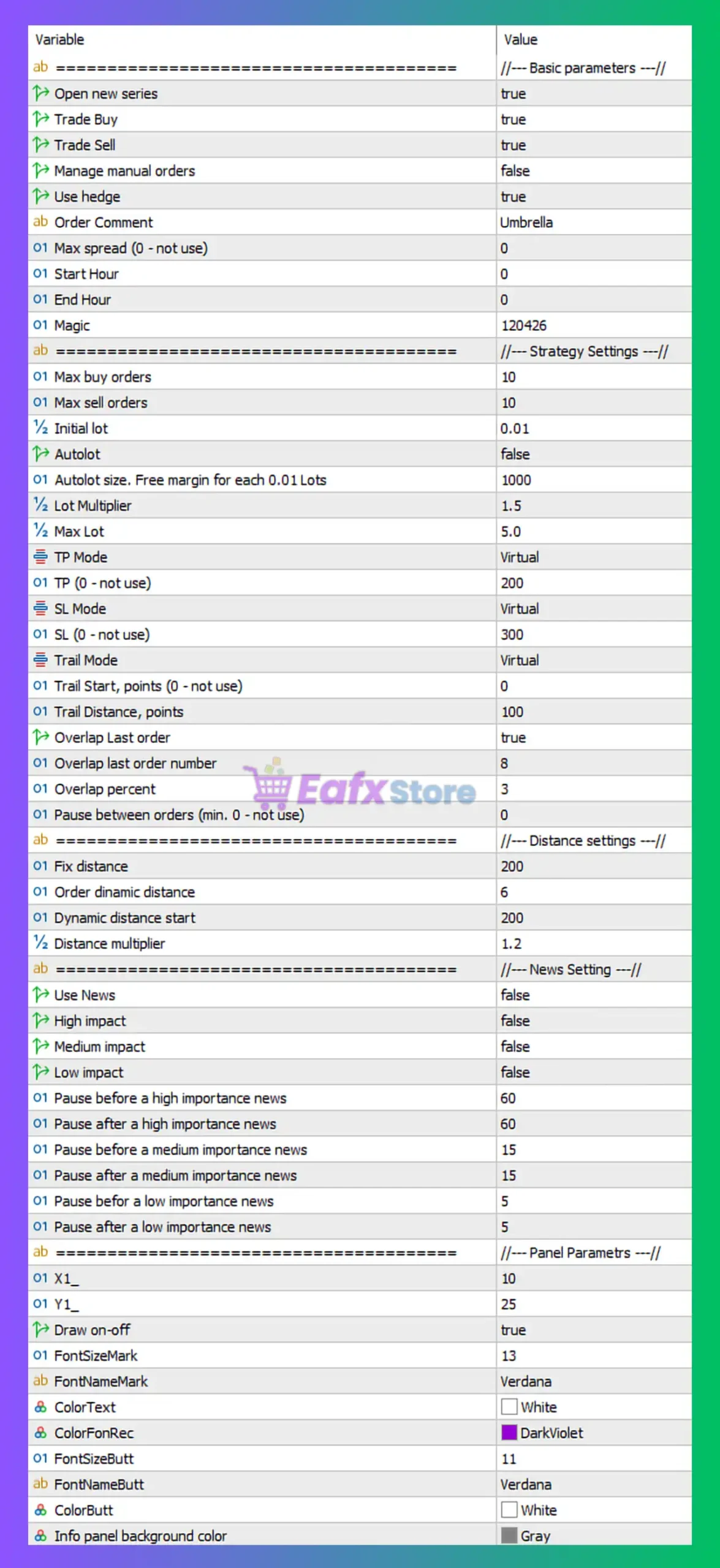
Full Parameters
Basic parameters
- Open new series = true: Enables the EA to start new trading series automatically.
- Trade Buy = true: Allows the EA to open BUY positions.
- Trade Sell = true: Allows the EA to open SELL positions.
- Manage manual orders = false: Disables management of manually opened trades.
- Use hedge = true: Enables hedging functionality for opposite-direction positions.
- Order Comment = Umbrella: Adds “Umbrella” as the trade comment for all EA positions.
- Max spread (0 – not use) = 0: Spread filtering disabled because value is set to 0.
- Start Hour = 0: Trading start hour set to 00:00.
- End Hour = 0: Trading end hour set to 00:00, indicating no hourly restriction.
- Magic = 120426: Unique identifier (120426) used to manage EA trades independently.
Strategy Settings
- Max buy orders = 10: Limits maximum simultaneous BUY positions to 10 trades.
- Max sell orders = 10: Limits maximum simultaneous SELL positions to 10 trades.
- Initial lot = 0.01: Sets the initial trading lot size to 0.01 lots.
- Autolot = false: Disables automatic lot size calculation.
- Autolot size. Free margin for each 0.01 Lots = 1000: Requires 1000 free margin units per 0.01 lot when autolot is enabled.
- Lot Multiplier = 1.5: Multiplies lot size by 1.5 for subsequent orders.
- Max Lot = 5.0: Maximum allowed lot size capped at 5.0 lots.
TP / SL / Trailing Settings
- TP Mode = Virtual: Uses virtual Take Profit management instead of broker-side TP.
- TP (0 – not use) = 200: Sets virtual Take Profit to 200 points.
- SL Mode = Virtual: Uses virtual Stop Loss management instead of broker-side SL.
- SL (0 – not use) = 300: Sets virtual Stop Loss to 300 points.
- Trail Mode = Virtual: Uses virtual trailing stop management.
- Trail Start, points (0 – not use) = 0: Trailing start disabled because value is 0.
- Trail Distance, points = 100: Trailing stop distance set to 100 points.
Overlap Settings
- Overlap Last order = true: Enables overlap functionality for the last order in the series.
- Overlap last order number = 8: Overlap logic activates starting from order number 8.
- Overlap percent = 3: Sets overlap percentage to 3%.
- Pause between orders (min. 0 – not use) = 0: No pause between opening additional orders.
Distance settings
- Fix distance = 200: Fixed order spacing distance set to 200 points.
- Order dinamic distance = 6: Dynamic distance calculation factor set to 6.
- Dynamic distance start = 200: Dynamic distance adjustments begin from 200 points.
- Distance multiplier = 1.2: Multiplies order spacing by 1.2 for subsequent trades.
News Setting
- Use News = false: Disables economic news filtering.
- High impact = false: Ignores high-impact news events.
- Medium impact = false: Ignores medium-impact news events.
- Low impact = false: Ignores low-impact news events.
- Pause before a high importance news = 60: Would pause trading 60 minutes before high-impact news if news filter were enabled.
- Pause after a high importance news = 60: Would resume trading 60 minutes after high-impact news.
- Pause before a medium importance news = 15: Would pause trading 15 minutes before medium-impact news.
- Pause after a medium importance news = 15: Would resume trading 15 minutes after medium-impact news.
- Pause before a low importance news = 5: Would pause trading 5 minutes before low-impact news.
- Pause after a low importance news = 5: Would resume trading 5 minutes after low-impact news.
Panel Parametrs
- X1_ = 10: Horizontal position of the information panel set to 10 pixels.
- Y1_ = 25: Vertical position of the information panel set to 25 pixels.
- Draw on-off = true: Enables the display of the EA control panel.
- FontSizeMark = 13: Sets information panel font size to 13.
- FontNameMark = Verdana: Uses Verdana font for panel text.
- ColorText = White: Displays panel text in White color.
- ColorFonRec = DarkViolet: Sets panel rectangle/background color to DarkViolet.
- FontSizeButt = 11: Sets button font size to 11.
- FontNameButt = Verdana: Uses Verdana font for panel buttons.
- ColorButt = White: Sets button text color to White.
- Info panel background color = Gray: Sets information panel background color to Gray.
Conclusion
The Umbrella MT5 settings provide a comprehensive grid and hedge trading framework with virtual trade management, adaptive order spacing and customizable interface controls.
By combining hedging logic, lot multiplication, overlap management, and optional news filtering, the EA offers traders a flexible environment for advanced automated trading strategies.
Understanding these parameters helps improve execution accuracy, optimize risk control and adapt the EA to different market conditions.
FAQs
❓ What does Use hedge = true do?
It allows the EA to open opposite-direction trades simultaneously for hedging purposes.
❓ Why is TP Mode = Virtual important?
It manages Take Profit internally without sending TP levels directly to the broker.
❓ What is the purpose of Lot Multiplier = 1.5?
It increases lot size by 1.5x for additional trades in the series.
❓ Why is Overlap Last order = true useful?
It enables overlapping trade logic for advanced grid recovery strategies.
❓ What does Distance multiplier = 1.2 mean?
It gradually increases spacing between orders by a factor of 1.2.