




🔢 Luna AI Pro MT5 Settings Guide
Luna AI Pro MT5 is an advanced automated trading Expert Advisor designed with a comprehensive set of controls for lot sizing, performance-based risk adjustment, pair selection, rollover protection, trading sessions, pending-order management, spread filtering, swap control and economic-news protection.
The configuration shown in the provided settings panels gives traders extensive control over how trading volume is calculated, how performance affects position sizing, which currency pairs are monitored, and when the EA can open or manage trades.
Understanding each parameter is essential for configuring Luna AI Pro MT5 according to account size, trading conditions and individual risk preferences.
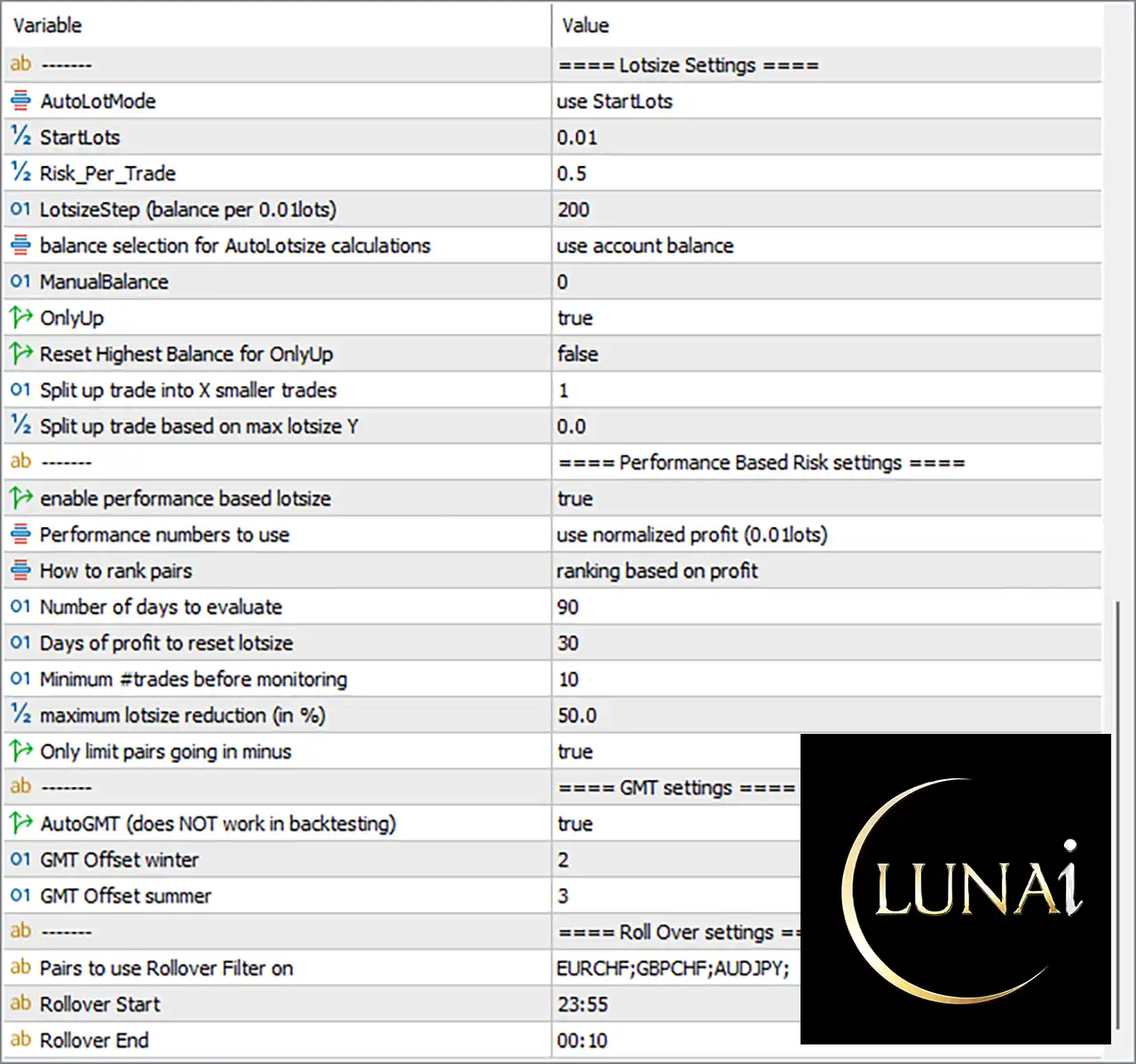
🔢 Luna AI Pro MT5 Settings Explained
🔶 Lotsize Settings
🔹 AutoLotMode: use StartLots — Determines the automatic lot-sizing mode. The current setting uses the predefined StartLots value as the basis for initial position sizing.
🔹 StartLots: 0.01 — Sets the starting trade volume to 0.01 lots, providing the initial position size used by the EA.
🔹 Risk_Per_Trade: 0.5 — Defines the configured risk level per trade at 0.5, which can be used by the EA's risk-based position-sizing calculations.
🔹 LotSizeStep (balance per 0.01lots): 200 — Sets the balance increment to 200 for each 0.01 lots, providing a balance-to-volume reference for lot-size calculations.
🔹 balance selection for AutoLotsize calculations: use account balance — Specifies that the EA uses the account balance when calculating automatic lot size.
🔹 ManualBalance: 0 — Sets the manually specified balance to 0. The current configuration therefore relies on the selected account-balance calculation method rather than a custom manual balance.
🔹 OnlyUp: true — Enables the OnlyUp function, allowing the performance-based balance reference to move upward according to the EA's internal logic.
🔹 Reset Highest Balance for OnlyUp: false — Disables automatic resetting of the highest balance reference, with the value set to false.
🔹 Split up trade into X smaller trades: 1 — Sets the number of smaller trades created from one intended position to 1, meaning no additional splitting is configured.
🔹 Split up trade based on max lotsize Y: 0.0 — Sets the maximum-lot-based trade-splitting threshold to 0.0, indicating that no positive maximum lot-size threshold is configured here.
🔶 Performance-Based Risk Settings
🔹 enable performance based lotsize: true — Activates performance-based lot sizing, allowing the EA to adjust trading volume according to the configured performance calculations.
🔹 Performance numbers to use: use normalized profit (0.01lots) — Instructs the EA to evaluate performance using normalized profit based on 0.01 lots, helping compare results across different position sizes.
🔹 How to rank pairs: ranking based on profit — Ranks currency pairs according to their profit performance, which can influence pair-selection or lot-sizing decisions.
🔹 Number of days to evaluate: 90 — Sets the performance evaluation period to 90 days, providing the historical window used to assess pair performance.
🔹 Days of profit to reset lotsize: 30 — Sets the lot-size reset period to 30 days based on the EA's configured profit evaluation logic.
🔹 Minimum #trades before monitoring: 10 — Requires a minimum of 10 trades before the EA begins applying its performance-monitoring logic.
🔹 maximum lotsize reduction (in %): 50.0 — Limits the maximum reduction in calculated lot size to 50.0% under the performance-based risk system.
🔹 Only limit pairs going in minus: true — Enables the option to limit or reduce exposure specifically for currency pairs that are performing negatively.
🔶 GMT Settings
🔹 AutoGMT (does NOT work in backtesting): true — Enables automatic GMT detection. The setting is true, and the panel explicitly notes that this function does NOT work in backtesting.
🔹 GMT Offset winter: 2 — Sets the winter GMT offset to 2 hours.
🔹 GMT Offset summer: 3 — Sets the summer GMT offset to 3 hours, accommodating the configured daylight-saving-time adjustment.
🔶 Rollover Settings
🔹 Pairs to use Rollover Filter on: EURCHF;GBPCHF;AUDJPY — Applies the rollover filter to EURCHF, GBPCHF, and AUDJPY.
🔹 Rollover Start: 23:55 — Sets the beginning of the rollover-filter period at 23:55.
🔹 Rollover End: 00:10 — Sets the end of the rollover-filter period at 00:10, covering the configured rollover window across midnight.
🔶 EA Settings
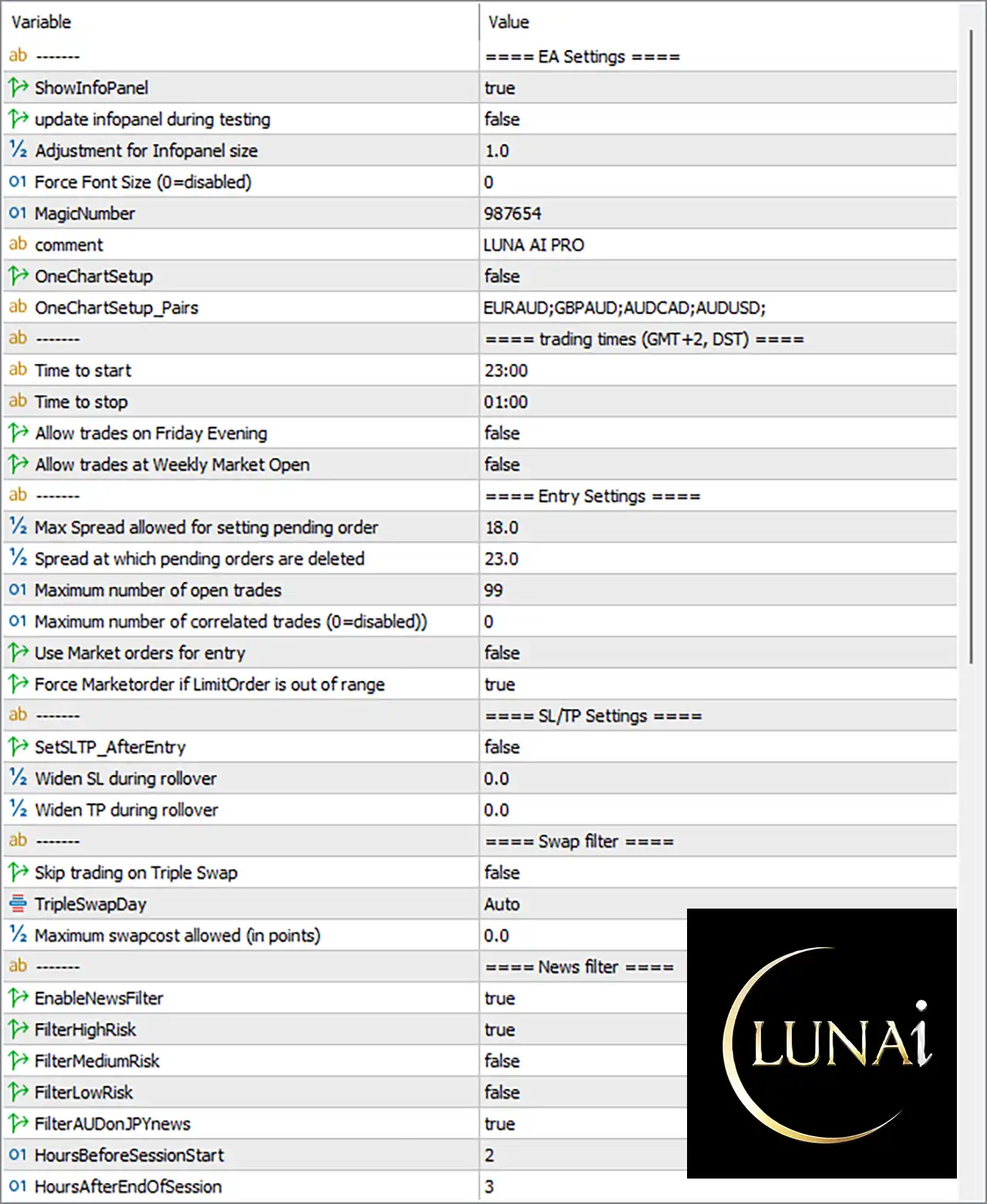
🔹 ShowInfoPanel: true — Enables the EA's information panel, allowing trading information to be displayed directly on the chart.
🔹 update infopanel during testing: false — Disables information-panel updates during testing, with the value set to false.
🔹 Adjustment for Infopanel size: 1.0 — Sets the information-panel size adjustment factor to 1.0, representing the default scaling value.
🔹 Force Font Size (0=disabled): 0 — Sets the forced font size to 0, meaning the forced font-size function is disabled.
🔹 MagicNumber: 987654 — Uses 987654 as the EA's unique Magic Number for identifying and managing its own trades.
🔹 comment: LUNA AI PRO — Sets the trade/comment label to LUNA AI PRO, allowing positions generated by the EA to be identified more easily.
🔹 OneChartSetup: false — Disables the one-chart setup mode with the value false.
🔹 OneChartSetup_Pairs: EURAUD;GBPAUD;AUDCAD;AUDUSD — Defines the currency pairs associated with the one-chart setup configuration: EURAUD, GBPAUD, AUDCAD, and AUDUSD.
🔶 Trading Time Settings
🔹 Trading times (GMT+2, DST): GMT+2, DST — Indicates that the configured trading schedule is based on GMT+2 with DST.
🔹 Time to start: 23:00 — Sets the daily trading start time to 23:00 according to the configured GMT+2/DST time reference.
🔹 Time to stop: 01:00 — Sets the trading stop time to 01:00, creating a trading window that crosses midnight.
🔹 Allow trades on Friday Evening: false — Disables trading during the configured Friday evening period.
🔹 Allow trades at Weekly Market Open: false — Prevents the EA from trading at the weekly market opening period.
🔶 Entry Settings
🔹 Max Spread allowed for setting pending order: 18.0 — Allows pending orders to be set when the spread is within the configured maximum of 18.0.
🔹 Spread at which pending orders are deleted: 23.0 — Sets 23.0 as the spread level at which existing pending orders are deleted according to the EA's spread-protection logic.
🔹 Maximum number of open trades: 99 — Sets the maximum number of open trades to 99.
🔹 Maximum number of correlated trades (0=disabled): 0 — Sets the correlated-trade limit to 0, which means the correlated-trade restriction is disabled.
🔹 Use Market orders for entry: false — Disables market-order entries, with the setting configured as false.
🔹 Force Marketorder if LimitOrder is out of range: true — Enables the EA to use a market order when a configured Limit Order falls outside the acceptable range.
🔶 SL/TP Settings
🔹 SetSLTP_AfterEntry: false — Disables the option to set Stop Loss and Take Profit after the entry has been executed.
🔹 Widen SL during rollover: 0.0 — Sets the rollover Stop Loss widening value to 0.0, meaning no additional SL widening is configured.
🔹 Widen TP during rollover: 0.0 — Sets the rollover Take Profit widening value to 0.0, meaning no additional TP widening is configured.
🔶 Swap Filter Settings
🔹 Skip trading on Triple Swap: false — Disables the option to automatically skip trading on the broker's Triple Swap day.
🔹 TripleSwapDay: Auto — Sets the Triple Swap day detection mode to Auto, allowing the EA to determine the relevant day automatically.
🔹 Maximum swapcost allowed (in points): 0.0 — Sets the maximum permitted swap cost to 0.0 points according to the displayed configuration.
🔶 News Filter Settings
🔹 EnableNewsFilter: true — Enables the economic-news filter, allowing the EA to restrict trading around relevant scheduled news events.
🔹 FilterHighRisk: true — Enables filtering for high-risk news events, providing the strongest news-event protection in the displayed configuration.
🔹 FilterMediumRisk: false — Disables filtering for medium-risk news events.
🔹 FilterLowRisk: false — Disables filtering for low-risk news events.
🔹 FilterAUDonJPYnews: true — Enables the special AUD-on-JPY news filter, allowing the EA to apply the relevant news restriction to AUD/JPY-related events.
🔹 HoursBeforeSessionStart: 2 — Sets the news-filter protection period to 2 hours before the relevant session start.
🔹 HoursAfterEndofSession: 3 — Sets the post-session news protection period to 3 hours after the relevant session end.
🔶 Key Highlights of Luna AI Pro MT5
🔹 Starting Position Size: The EA is configured with StartLots = 0.01, establishing the initial trading volume.
🔹 Risk Configuration: The displayed Risk_Per_Trade value is 0.5, while performance-based lot sizing is enabled.
🔹 Performance Analysis: The EA evaluates pair performance over 90 days and requires at least 10 trades before monitoring.
🔹 Risk Reduction: The maximum configured performance-based lot-size reduction is 50.0%.
🔹 Pair Ranking: Currency pairs are ranked according to profit, allowing performance to influence the EA's pair-management logic.
🔹 Rollover Protection: The rollover filter covers EURCHF, GBPCHF, and AUDJPY between 23:55 and 00:10.
🔹 Trading Schedule: The EA is configured to trade from 23:00 to 01:00 using the GMT+2, DST time reference.
🔹 Weekend Protection: Trading on Friday Evening and at the Weekly Market Open is disabled.
🔹 Pending Orders: The EA allows up to 99 open trades, while pending orders can be controlled using spread thresholds of 18.0 and 23.0.
🔹 Correlated Trades: The value 0 disables the maximum correlated-trade restriction.
🔹 News Protection: The news filter is enabled, with High-Risk = true, Medium-Risk = false, and Low-Risk = false.
🔢 Conclusion
Luna AI Pro MT5 provides an extensive configuration framework that goes beyond basic lot sizing and entry management. Its settings include automatic and performance-based position sizing, pair ranking, historical performance evaluation, rollover filtering, GMT adjustment, trading-session controls, spread protection, pending-order management, swap filtering, and economic-news protection.
The displayed configuration uses 0.01 StartLots, a 0.5 Risk_Per_Trade value, a 90-day performance evaluation period, a 50.0% maximum lot-size reduction, and a 99-trade maximum. It also uses 23:00–01:00 trading hours, applies rollover filtering from 23:55–00:10, and enables High-Risk news filtering.
Before deploying these settings on a live MT5 account, traders should carefully test how the EA's performance-based lot sizing, 0.5 risk setting, 99-trade limit, spread thresholds, and news-filter timing interact with their broker's execution conditions. Backtesting and forward testing on a demo account can help verify that the configuration behaves as expected before live deployment.
🔢 FAQs
❓ What is the starting lot size of Luna AI Pro MT5?
The displayed StartLots value is 0.01, which is the configured starting trade volume.
❓ Does Luna AI Pro MT5 support performance-based lot sizing?
Yes. enable performance based lotsize = true, and the EA uses normalized profit based on 0.01 lots to evaluate performance. It reviews 90 days of data and requires at least 10 trades before monitoring.
❓ What are the trading hours configured for Luna AI Pro MT5?
The displayed trading schedule is 23:00 to 01:00, using the GMT+2, DST time reference. Friday evening trading and weekly market-open trading are both disabled.
❓ How does the news filter work in the displayed settings?
The news filter is enabled with EnableNewsFilter = true. High-Risk news is filtered, while Medium-Risk and Low-Risk news are not filtered. The settings also enable FilterAUDonJPYnews = true.
❓ Which currency pairs are included in the rollover filter?
The rollover filter is applied to EURCHF, GBPCHF, and AUDJPY, with the configured rollover period running from 23:55 to 00:10.


