


🔢 Nasdaq Futures EA MT4 Settings Guide: Complete Inputs Explained
Nasdaq Futures EA MT4 is an automated trading Expert Advisor (EA) designed for MetaTrader 4, with the supplied settings specifying the NAS100 instrument and H1 (1-hour) timeframe. The EA includes configurable trading hours, take-profit and stop-loss levels, recovery orders, trailing-stop management, moving average filtering, spread control, and chart status display.
Understanding the Nasdaq Futures EA MT4 inputs helps traders configure order execution, position sizing, trade management, and filtering conditions according to their broker and risk tolerance. This guide explains every parameter shown in the supplied settings panel, preserving the exact names and values.
⚙️ General Information and Broker Time Settings
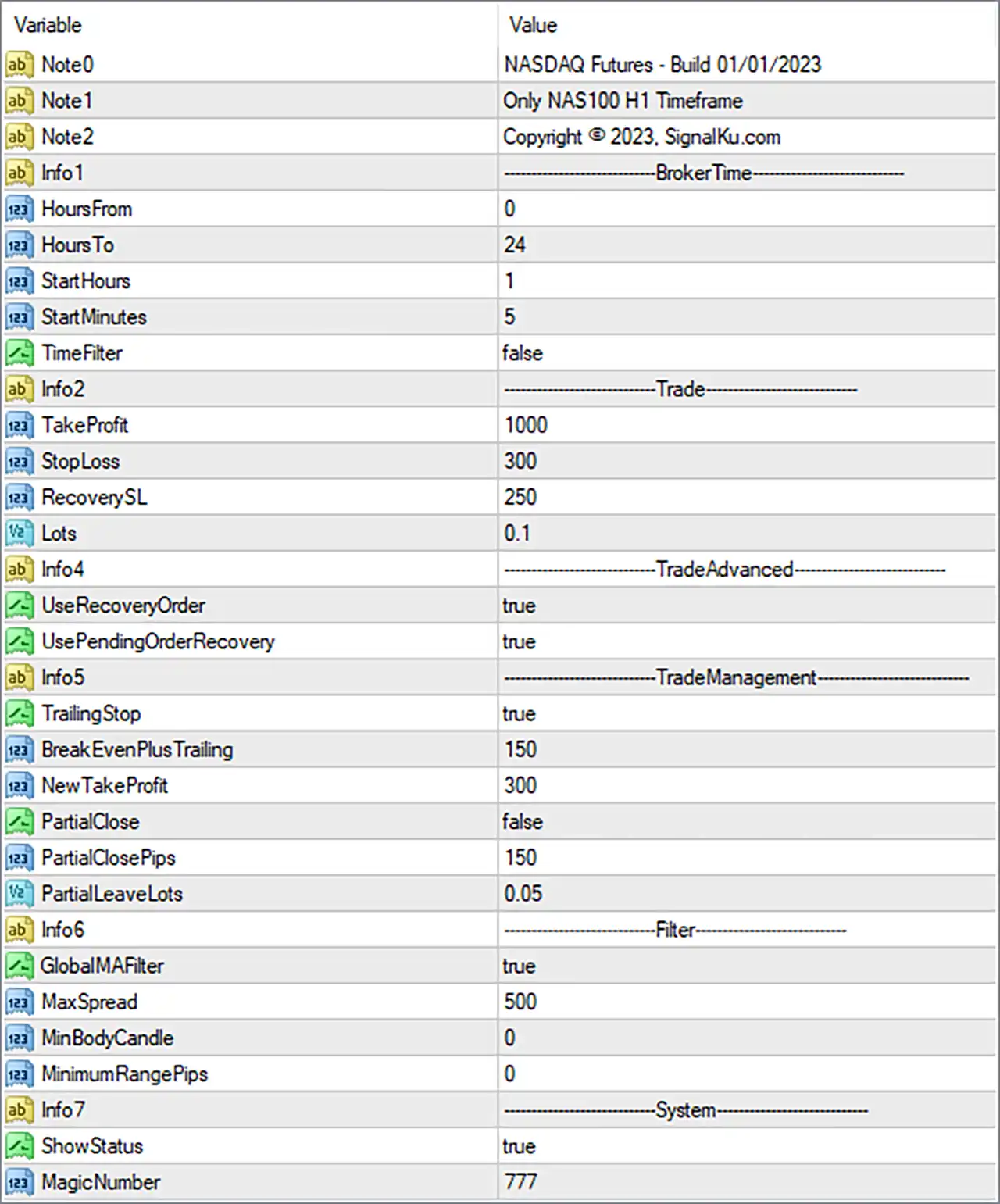
🔹 Note1 = Only NAS100 H1 Timeframe: Indicates that the EA is intended for the NAS100 instrument on the H1 (1-hour) timeframe. Traders should confirm compatibility with their broker's symbol name and follow this stated timeframe requirement.
🔹 Note2 = Copyright © 2023, SignalKu.com: Displays the copyright notice associated with SignalKu.com and the year 2023. This is informational text and does not directly control trade execution.
🔹 Info1 = BrokerTime: Identifies the section containing broker-time configuration parameters, which may determine when the EA is permitted to trade if its time filter is enabled.
🔹 HoursFrom = 0: Sets the beginning of the general broker-time window to hour 0, corresponding to 00:00. Its precise interaction with the other time parameters depends on the EA's internal scheduling logic.
🔹 HoursTo = 24: Sets the ending boundary of the general broker-time window to hour 24, conventionally representing the end of a full day. Confirm how the EA handles this boundary because standard clock-hour values typically range from 0 to 23.
🔹 StartHours = 1: Sets the configured starting hour to 1, corresponding to 01:00 broker time when interpreted as a conventional clock-time parameter.
🔹 StartMinutes = 5: Sets the starting minute to 5. Combined with StartHours = 1, this represents a configured start time of 01:05 broker time if the EA uses these inputs as a standard hour-and-minute pair.
🔹 TimeFilter = false: Disables the EA's time-filtering function. The configured trading hours may therefore not restrict entries through this filter while it remains disabled, although other internal trading conditions may still apply.
⚙️ Trade Settings
🔹 TakeProfit = 1000: Sets the configured take-profit parameter to 1000 units. The panel does not specify whether these units represent points, ticks, or another price-distance measurement, so verify the EA's calculation before using this setting on NAS100.
🔹 StopLoss = 300: Sets the configured stop-loss parameter to 300 units. If implemented as a conventional stop-loss distance, it defines the intended price movement against the position before the EA attempts to exit the trade, subject to execution conditions.
🔹 RecoverySL = 250: Sets the recovery-related stop-loss parameter to 250 units. This may control stop-loss handling for recovery orders or positions, but its exact relationship to StopLoss = 300 depends on the EA's programming.
🔹 Lots = 0.1: Sets the configured trading volume to 0.1 lots. The actual monetary exposure depends on the broker's NAS100 contract specifications, tick value, and margin requirements.
⚙️ Advanced Trade and Recovery Settings
🔹 UseRecoveryOrder = true: Enables the recovery-order feature. The EA may open additional trades under its programmed recovery conditions, potentially increasing total market exposure and drawdown.
🔹 UsePendingOrderRecovery = true: Enables the pending-order recovery feature. This allows the EA to use pending orders as part of its recovery logic when the relevant internal conditions are satisfied.
⚙️ Trade Management Settings
🔹 TrailingStop = true: Enables trailing-stop management. If implemented conventionally, the EA can adjust a trade's stop-loss as the market moves favorably, potentially protecting accumulated gains without guaranteeing a particular exit price.
🔹 BreakEvenPlusTrailing = 150: Sets the break-even-plus-trailing parameter to 150 units. This may specify a profit threshold or offset for moving the stop-loss beyond the entry price, but its exact calculation and unit require confirmation from the EA's documentation or source code.
🔹 NewTakeProfit = 300: Sets an alternative take-profit parameter to 300 units. It may be used when the EA adjusts a trade's target or applies advanced trade-management rules, depending on the programmed logic.
🔹 PartialClose = false: Disables the partial-closing feature. The EA will not use this specific feature to close only part of a position while the setting remains false, although other exit mechanisms may still operate.
🔹 PartialClosePips = 150: Sets the partial-close threshold or distance to 150 units. This parameter is configured, but its intended function may remain inactive while PartialClose = false.
🔹 PartialLeaveLots = 0.05: Sets the volume intended to remain after a partial close to 0.05 lots. If partial closing is enabled and implemented as expected, this setting may determine the remaining position volume, subject to broker volume restrictions.
⚙️ Filtering Settings
🔹 GlobalMAFilter = true: Enables the global moving average filter. This may restrict entries according to a moving average-based trend or market-direction condition, although the specific indicator period and filtering rules are not provided in the Inputs panel.
🔹 MaxSpread = 500: Sets the maximum spread threshold to 500 units under the EA's internal spread calculation. The actual meaning depends on the implementation and the broker's NAS100 pricing conventions, so verify the unit before trading.
🔹 MinBodyCandle = 0: Sets the minimum candle-body parameter to 0 units. If this setting represents a minimum candle-body size, it does not impose a positive minimum threshold, although other entry filters may still restrict trades.
🔹 MinimumRangePips = 0: Sets the minimum price-range requirement to 0 pips. If interpreted as a minimum market-movement filter, this setting does not require a positive minimum range, subject to the EA's internal logic.
⚙️ System Settings
🔹 ShowStatus = true: Enables the display of status information on the chart or EA interface. This may help traders monitor the robot's operational state, depending on the information supported by its interface.
🔹 MagicNumber = 777: Assigns the trade identifier 777 to orders managed by the EA. This Magic Number helps distinguish the robot's positions from manual trades and orders opened by other Expert Advisors using different identifiers.
🔢 Conclusion
The Nasdaq Futures EA MT4 settings provide controls for NAS100 H1 trading, including trade sizing, stop-loss and take-profit parameters, recovery orders, trailing-stop management, moving average filtering, spread limits, and chart status display.
The supplied configuration uses Lots = 0.1, TakeProfit = 1000, StopLoss = 300, RecoverySL = 250, and MagicNumber = 777. Recovery orders, pending-order recovery, trailing-stop management, and the global moving average filter are enabled. However, TimeFilter = false and PartialClose = false mean that the dedicated time filter and partial-closing function are disabled.
Before running Nasdaq Futures EA MT4 on a live account, verify the units used by StopLoss, TakeProfit, RecoverySL, BreakEvenPlusTrailing, NewTakeProfit, and MaxSpread. Pay particular attention to recovery trading because additional orders can increase total exposure. Backtesting and demo forward testing can help assess whether the configuration is appropriate for your broker and risk tolerance. No EA configuration guarantees profits or eliminates trading risk.


