


🔢 Gold Scalper Advanced Pro EA MT5: Complete Settings Guide and Configuration Explained
Gold Scalper Advanced Pro EA is an automated trading Expert Advisor configuration designed around flexible lot sizing, risk management, economic news filtering, and order identification. Its input settings allow traders to control position volume, select which economic events should restrict trading, configure pending-order handling during news periods, and display an information panel on the MetaTrader 5 chart.
The supplied configuration uses Automatic Lot Size, a risk setting of 1.0%, and an enabled news filter that blocks high- and medium-impact news for the USD currency. This guide explains every visible setting, preserving the original parameter names and values.
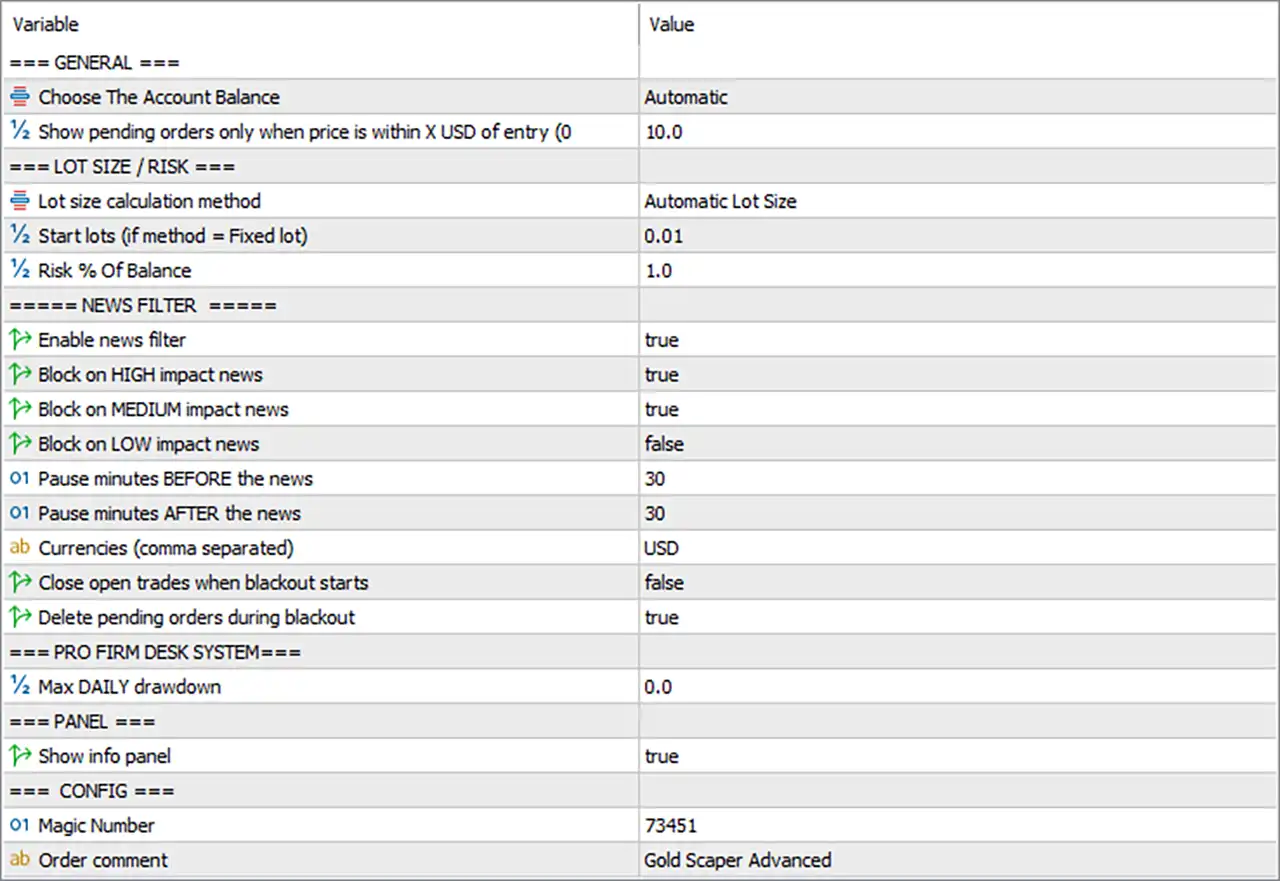
⚙️ General Settings
🔹 Choose The Account Balance = Automatic — Selects Automatic as the account-balance option. The EA is configured to determine the balance reference automatically rather than requiring a manually selected balance value.
🔹 Show pending orders only when price is within X USD of entry (0 = no limit) = 10.0 — Sets the display distance to 10.0 USD from the pending order's entry price. According to the parameter label, pending orders are shown only when the current price is within this distance; 0 would remove the distance restriction.
⚙️ Lot Size and Risk Settings
🔹 Lot size calculation method = Automatic Lot Size — Selects automatic lot calculation rather than a manually fixed lot size. The EA determines the trading volume according to its internal position-sizing formula and the configured risk setting.
🔹 Start lots (if method = Fixed lot) = 0.01 — Sets the starting fixed lot size to 0.01 lots when fixed-lot mode is selected. Since the current method is Automatic Lot Size, this value may not determine the active position size.
🔹 Risk % Of Balance = 1.0 — Sets the risk parameter to 1.0% of the account balance. The actual monetary risk depends on how the EA translates this percentage into position volume and whether it calculates risk using the stop-loss distance. Confirm the implementation before live trading.
⚙️ News Filter Settings
🔹 ====== NEWS FILTER ====== = Section heading — Identifies the section that controls restrictions around economic news releases.
🔹 Enable news filter = true — Enables the news filter so the EA can apply the configured event restrictions when suitable economic-calendar data is available.
🔹 Block on HIGH impact news = true — Enables trading restrictions around high-impact economic events. The EA is configured to block affected trading activity during the specified news blackout period.
🔹 Block on MEDIUM impact news = true — Enables trading restrictions around medium-impact economic events, adding another layer of news-related filtering.
🔹 Block on LOW impact news = false — Disables restrictions specifically for low-impact news. Events classified as low impact will not be blocked by this particular option.
🔹 Pause minutes BEFORE the news = 30 — Sets the pre-news pause period to 30 minutes. The EA can restrict new trading activity during the 30 minutes leading up to a qualifying event.
🔹 Pause minutes AFTER the news = 30 — Sets the post-news pause period to 30 minutes. The EA can resume eligible trading after the configured 30-minute period has passed, subject to other filters.
🔹 Currencies (comma separated) = USD — Sets USD as the currency to monitor for relevant economic events. The news filter is configured to focus on US dollar-related releases rather than a comma-separated list of multiple currencies.
🔹 Close open trades when blackout starts = false — Disables automatic closure of existing positions when a news blackout begins. Open trades may remain active during the blackout unless another exit rule closes them.
🔹 Delete pending orders during blackout = true — Enables deletion of pending orders during the news blackout. This is intended to reduce the possibility of pending entries being triggered during restricted news periods.
⚙️ Prop Firm Desk System
🔹 === PRO FIRM DESK SYSTEM=== = Section heading — Identifies the section associated with the EA's prop firm or account-risk controls.
🔹 Max DAILY drawdown = 0.0 — Sets the maximum daily drawdown parameter to 0.0. The exact meaning of zero depends on the EA's implementation; it may represent a disabled limit or a special default value. Verify its behavior before relying on this setting for account protection.
⚙️ Information Panel
🔹 === PANEL === = Section heading — Identifies the chart-display settings.
🔹 Show info panel = true — Enables the information panel on the MetaTrader 5 chart. When supported by the EA, this panel can display relevant trading or configuration information.
⚙️ Configuration and Trade Identification
🔹 === CONFIG === = Section heading — Introduces the general configuration parameters used to identify the EA's trades.
🔹 Magic Number = 73451 — Assigns the Magic Number 73451 to the EA's trades. This identifier helps distinguish positions managed by Gold Scalper Advanced Pro EA MT5 from manually opened trades or orders belonging to other Expert Advisors.
🔹 Order comment = Gold Scaper Advanced — Sets the order comment to Gold Scaper Advanced, preserving the exact spelling shown in the input panel. Where supported by the broker and EA, this comment can help identify the EA's orders in trade history and account records.
🔢 Conclusion
The displayed Gold Scalper Advanced Pro EA MT5 configuration combines automatic lot sizing with a 1.0% risk parameter and a news filter focused on USD economic events. High- and medium-impact news restrictions are enabled, while low-impact news restrictions are disabled. The EA is configured to pause trading 30 minutes before and 30 minutes after qualifying news events.
During news blackouts, automatic closure of open trades is disabled, but deletion of pending orders is enabled. The information panel is also enabled, the Magic Number is 73451, and the order comment is Gold Scaper Advanced.
Before deploying these settings on a live account, verify the EA's automatic lot-sizing formula, the behavior of Max DAILY drawdown = 0.0, and the economic-calendar source used for news detection. The risk percentage should not be assumed to represent a guaranteed maximum loss unless the EA's risk calculation explicitly enforces it. Backtesting and demo testing are recommended before live use.


