

🔢 Omega Gann Angles – Easy-to-Read Inputs Guide
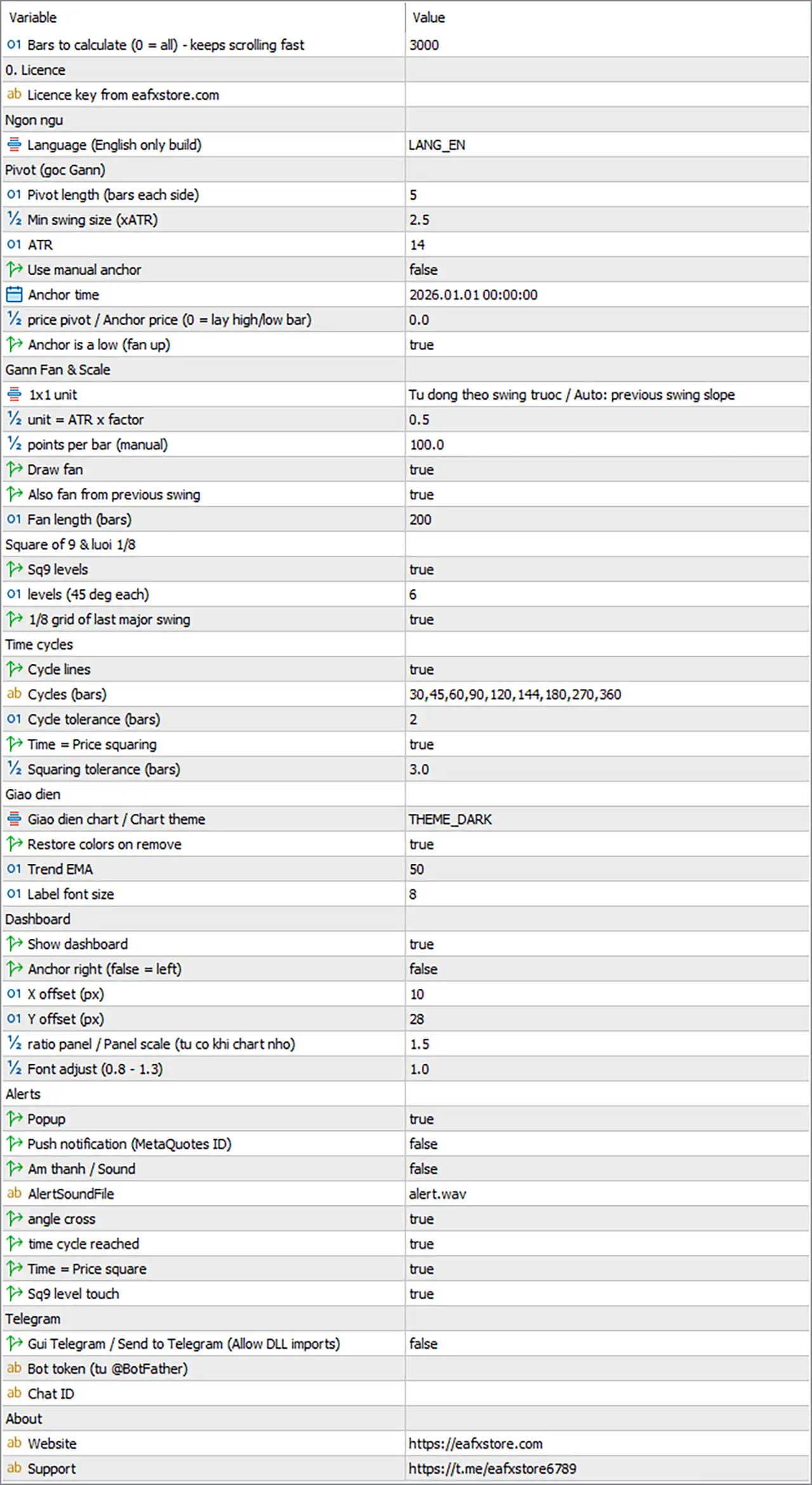
This guide explains the Omega Gann Angles Inputs settings in simple English while preserving the original parameter names, variable names, default values, allowed values, numerical details and practical recommendations from the source file. The indicator contains 47 parameters in 12 sections and requires a licence key, Allow DLL imports, and an internet connection.
🔢 Installation
🔹 Open MetaTrader 5 → File → Open Data Folder.
🔹 Go to MQL5 → Indicators.
🔹 Copy OmegaGannAngles_v1.0.ex5 into the Indicators folder.
🔹 Return to MetaTrader 5 and right-click Indicators → Refresh, or restart the terminal.
🔹 Open Tools → Options → Expert Advisors and enable Allow DLL imports.
🔹 Drag Omega Gann Angles from the Navigator onto the desired chart.
🔹 In the Common tab, make sure Allow DLL imports is enabled for the indicator.
🔹 Open the Inputs tab, enter the licence key and configure the settings.
🔹 Click OK.
Opening the Inputs Tab Later
Press Ctrl+I on the chart, or right-click → Indicators List, select Omega Gann Angles, click Edit, then open the Inputs tab.
Presets can be saved and loaded using the Save and Load buttons. Keeping one .set file for each symbol and timeframe is recommended.
🔢 General
🔹 Bars to calculate (0 = all) – keeps scrolling fast [MaxBarsCalc] — Default: 3000 — Controls how many recent bars are analysed when the indicator loads. 0 uses all bars on the chart. Recommended: 2000–3000 for M5–H1 and 3000–5000 for H4/D1; avoid 0 on very long M1 history.
🔢 Licence
🔹 Licence key from eafxstore.com [InpLicenseKey] — Default: (empty) — Enter the personal licence key received from eafxstore.com. Spaces are automatically removed and the key is converted to uppercase. The first activation requires an internet connection.
🔢 Language
🔹 Language (English only build) [Lang] — Default: LANG_EN — Controls the dashboard, chart labels and alert language. Available values are LANG_VI and LANG_EN, but this build displays English regardless of the selected value.
🔢 Pivot – Swings and Gann Anchor
This is one of the most important groups because it determines which swing highs and lows are recognised and which swing becomes the Gann anchor (GANN 0). The anchor is the starting point for the Gann Fan, Square of 9 levels and time cycles.
🔹 Pivot length (bars each side) [PivLen] — Default: 5 — Controls how many bars are required on each side to confirm a pivot high or low. Higher values identify larger swings, while lower values react to smaller swings. Recommended: 3 for M5–M15, 5 for M30–H1 and 7–10 for H4–D1.
🔹 Min swing size (xATR) [SwingATR] — Default: 2.5 — Sets the minimum price movement between opposite swings in multiples of ATR. Higher values filter more small swings; lower values allow more frequent anchor changes. Recommended: 3.0–3.5 if anchors change too often and 1.5–2.0 if the anchor remains on an old swing too long.
🔹 ATR [AtrLen] — Default: 14 — Sets the ATR period used for minimum swing size, ATR scale mode, Square of 9 touch detection and the T=P label position. Standard value: 14.
🔹 Use manual anchor [UseManualAnchor] — Default: false — When false, the indicator automatically selects the latest confirmed swing as the Gann anchor; when true, the anchor is fixed using AnchorTime, AnchorPrice and AnchorIsLow.
🔹 Anchor time [AnchorTime] — Default: 2026.01.01 00:00 — Defines the date and time of the manual anchor when UseManualAnchor = true. The selected time must exist within the loaded chart history. Ignored when automatic anchor mode is active.
🔹 Price pivot / Anchor price (0 = lay high/low bar) [AnchorPrice] — Default: 0 — 0 uses the bar's low when AnchorIsLow = true or high when false; entering a specific price allows the fan to start from another level such as a close or round number. Ignored in automatic mode.
🔹 Anchor is a low (fan up) [AnchorIsLow] — Default: true — true means the anchor is a low and the fan projects upward as support angles; false means the anchor is a high and the fan projects downward as resistance angles. Used only in manual anchor mode.
🔢 Gann Fan & Scale
These settings determine the 1x1 unit and how the Gann Fans are displayed. The other angles are multiples of the 1x1 unit, such as 8x1 = 8 units per bar and 1x2 = half a unit per bar.
🔹 1x1 unit [ScaleMode] — Default: Auto: previous swing slope — Determines how the 1x1 Gann angle is calculated. Options: Auto: previous swing slope, Auto: ATR x factor or Manual (points per bar). The previous swing slope is recommended for most users.
🔹 Unit = ATR x factor [ScaleATRFactor] — Default: 0.5 — Used only with ATR scale mode and sets the 1x1 unit to ATR multiplied by this factor. Lower values create flatter angles, while higher values create steeper angles. Recommended: 0.3 for slower/ranging markets, 0.5 balanced, 0.8–1.0 for strongly trending markets.
🔹 Points per bar (manual) [ManualPPB] — Default: 100 — Used only with Manual scale mode and defines how many points the 1x1 angle moves per bar. For a 5-digit forex pair, 100 points = 10 pips; for gold quoted with 2 decimals, 100 points = 1.00 USD.
🔹 Draw fan [ShowFan] — Default: true — Shows or hides the Gann Fan lines. When false, the fan is hidden but still calculated, so dashboard information, angle-cross events and alerts continue to work.
🔹 Also fan from previous swing [ShowPrevFan] — Default: true — Displays a second fan from the previous anchor using dimmer colours and no labels. Useful for identifying intersections between the current and previous fan. Set to false for a cleaner chart.
🔹 Fan length (bars) [FanBars] — Default: 200 — Controls how far the fan lines are drawn from the anchor and also determines the right end of the Square of 9 and 1/8 grid lines. Recommended: 250–300 on higher timeframes.
🔢 Square of 9 & 1/8 Grid
These settings control the Square of 9 levels and the Gann 1/8 grid.
🔹 Sq9 levels [ShowSq9] — Default: true — Shows or hides the Square of 9 levels calculated from the anchor price. When disabled, Square of 9 levels, related dashboard information, events and alerts are also disabled.
🔹 Levels (45 deg each) [Sq9Degrees] — Default: 6 — Controls how many Square of 9 steps are displayed above and below the anchor, with each step representing 45°. Values range from 1–8. Recommended: 4 for scalping and 8 for daily charts.
🔹 1/8 grid of last major swing [ShowGrid8] — Default: true — Shows or hides the Gann 1/8 grid containing nine horizontal lines dividing the range between the current and previous anchor into eighths. The 4/8 or 50% line is displayed as a dashed gold line and requires a previous anchor.
🔢 Time Cycles
These settings control Gann time cycles and Time = Price squaring.
🔹 Cycle lines [ShowCycles] — Default: true — Shows or hides vertical cycle lines counted from the anchor. Past cycles appear as grey dotted lines, while future cycles appear as gold dashed lines. Cycles more than 400 bars into the future are not drawn, but cycle events and alerts continue to work.
🔹 Cycles (bars) [CycleList] — Default: 30,45,60,90,120,144,180,270,360 — Defines the time-cycle distances in bars from the anchor. Enter positive whole numbers separated by commas, with a maximum of 20 values. Recommended: 30,45,60,90,120 for lower timeframes; daily charts may also use 52 or 365.
🔹 Cycle tolerance (bars) [CycleTol] — Default: 2 — Defines how many bars before or after a cycle date are treated as a turn window on the dashboard. The actual cycle event and alert occur on the exact cycle bar. Recommended: 1 for low timeframes and 3 for H4/D1.
🔹 Time = Price squaring [ShowSquare] — Default: true — Enables detection when the price distance from the anchor, measured in 1x1 units, equals the number of bars since the anchor. A gold dot and T=P label are displayed when detected. Detection starts after at least 10 bars and occurs at most once per anchor.
🔹 Squaring tolerance (bars) [SquareTol] — Default: 3.0 — Controls how close price distance and time distance must be to qualify as squared. Smaller values create fewer but more precise signals, while larger values create earlier and more frequent signals. The dashboard provides an early warning when the difference is within twice this tolerance.
🔢 Interface
These settings control the chart theme, trend EMA and chart label size.
🔹 Chart theme [Theme] — Default: THEME_DARK — Applies the indicator's colour scheme to the chart, including background, grid, candles and bid/ask lines. Options: THEME_NONE, THEME_DARK, THEME_MIDNIGHT, THEME_LIGHT. THEME_NONE keeps the existing chart colours.
🔹 Restore colors on remove [RestoreTheme] — Default: true — Restores the original chart colours and chart mode when the indicator is removed. Set to false if the indicator theme should remain permanently.
🔹 Trend EMA [TrendLen] — Default: 50 — Sets the EMA period used as a trend filter in the Gann Score. Price above a rising EMA adds 10 points, while price below a falling EMA subtracts 10 points. Recommended: 20–34 for faster short-term bias and 100–200 for long-term bias on daily charts.
🔹 Label font size [LabelFont] — Default: 8 — Controls the size of chart labels including fan angle names, Square of 9 labels, 1/8 grid labels, cycle numbers, GANN 0 and T=P. Recommended practical range: 7–12.
🔢 Dashboard
These settings control the dashboard visibility, position, size and text.
🔹 Show dashboard [ShowDash] — Default: true — Shows or hides the information panel. Hiding the dashboard does not stop calculations, drawings or alerts.
🔹 Anchor right (false = left) [DashRight] — Default: false — Places the dashboard on the left when false and on the right when true. When true, DashX is measured from the right edge.
🔹 X offset (px) [DashX] — Default: 10 — Sets the horizontal distance in pixels between the selected chart edge and the dashboard.
🔹 Y offset (px) [DashY] — Default: 28 — Sets the vertical distance in pixels from the top of the chart to the dashboard. The default leaves room for symbol/timeframe information.
🔹 Ratio panel / Panel scale [DashScale] — Default: 1.5 — Controls the dashboard size relative to its base width of 390 pixels. Recommended practical range: 0.8–2.0; use higher values on large monitors and lower values on laptops.
🔹 Font adjust (0.8–1.3) [DashFontAdj] — Default: 1.0 — Fine-tunes dashboard text size without changing the panel size. Increase it when text is too small and decrease it if text becomes cut off.
Moving the Dashboard
The dashboard can also be moved by dragging its header with the left mouse button.
The manually saved position takes priority over:
🔹 DashRight
🔹 DashX
🔹 DashY
To return to the input-based position, open Tools → Global Variables (F3) and delete the variables beginning with:
🔹 OMGANN_DASHX_
🔹 OMGANN_DASHY_
Then re-attach the indicator.
🔢 Alerts
The first four settings control how alerts are delivered, while the final four control which events trigger alerts.
Alerts are generated only on closed bars and only for new bars. Historical events found when the indicator loads do not trigger alerts.
🔹 Popup [AlertPopup] — Default: true — Displays the standard MetaTrader alert window with the alert message and sound.
🔹 Push notification (MetaQuotes ID) [AlertPush] — Default: false — Sends alerts to the MetaTrader mobile app. A MetaQuotes ID must be entered under Tools → Options → Notifications and notifications must be enabled.
🔹 Am thanh / Sound [AlertSoundOn] — Default: false — Plays the sound file specified in AlertSoundFile when an alert occurs.
🔹 AlertSoundFile [AlertSoundFile] — Default: alert.wav — Specifies the .wav file used for alerts. The file must be stored in the MetaTrader 5 Sounds folder. Examples include alert.wav, alert2.wav, news.wav and timeout.wav.
🔹 Angle cross [AlertAngle] — Default: true — Sends an alert when a closed bar moves from one side of the active fan's 2x1, 1x1 or 1x2 angle to the other side and identifies whether price strengthened above or weakened below the angle.
🔹 Time cycle reached [AlertCycle] — Default: true — Sends an alert when the number of bars since the anchor reaches one of the values in CycleList, marking the start of a potential turning window.
🔹 Time = Price square [AlertSquare] — Default: true — Sends an alert when Time = Price squaring is detected. Requires ShowSquare = true and includes the number of bars and price distance in points.
🔹 Sq9 level touch [AlertSq9] — Default: true — Sends an alert the first time a bar reaches each Square of 9 level after the anchor is established. Requires ShowSq9 = true.
🔢 Telegram
Telegram allows the indicator to send alerts directly to a Telegram chat.
🔹 Send to Telegram (Allow DLL imports) [TgEnable] — Default: false — Sends every enabled alert to Telegram with the symbol, timeframe, event, details and time. It also adds a TEST TG button to the dashboard. Requires Allow DLL imports and an internet connection.
🔹 Bot token (from @BotFather) [TgToken] — Default: (empty) — Stores the Telegram bot token. Create a bot through @BotFather by sending /newbot, then copy the generated token into this field.
🔹 Chat ID [TgChatID] — Default: (empty) — Defines the Telegram chat receiving the alerts. For private chats, message the bot first and obtain the ID; for groups or channels, add the bot as a member/admin. Group and channel IDs usually start with -100.
Testing Telegram
🔹 Set TgEnable = true.
🔹 Enter TgToken.
🔹 Enter TgChatID.
🔹 Make sure Allow DLL imports is enabled.
🔹 Click TEST TG in the dashboard footer.
🔹 A successful test displays “Telegram: test message sent!”
If the test fails, check the Experts tab for errors such as an incorrect token, missing chat, bot not started or no internet connection.
🔢 About
🔹 Website [AboutWeb] — Default: https://eafxstore.com — Defines the website opened by the WEB button in the dashboard footer.
🔹 Support [AboutTelegram] — Default: https://t.me/eafxstore6789 — Defines the support link opened by the TELEGRAM button in the dashboard footer.
🔢 Recommended Presets
The following presets are provided as starting points for different trading styles.
| Setting | Scalping M5–M15 | Intraday M30–H1 | Swing H4–D1 |
|---|---|---|---|
| PivLen | 3 |
5 |
7–10 |
| SwingATR | 2.0 |
2.5 |
3.0–3.5 |
| ScaleMode | ATR, factor 0.5 |
Previous swing slope | Previous swing slope |
| ShowPrevFan | false |
true |
true |
| FanBars | 120–150 |
200 |
250–300 |
| Sq9Degrees | 4 |
6 |
8 |
| CycleList | 30,45,60,90,120 |
30,45,60,90,120,144,180 |
Default list |
| CycleTol | 1 |
2 |
3 |
| SquareTol | 2.0 |
3.0 |
4.0 |
| TrendLen | 34 |
50 |
50–100 |
| Alerts | Angle | Angle, Cycle | All |
🔄 Scalping – M5 to M15
🔹 PivLen — 3 — Uses a shorter pivot length to react more quickly to smaller swings.
🔹 SwingATR — 2.0 — Uses a smaller minimum swing size to allow more frequent swing detection.
🔹 ScaleMode — ATR, factor 0.5 — Uses ATR-based scaling to adapt the Gann Fan to current volatility.
🔹 ShowPrevFan — false — Hides the previous fan to keep the lower-timeframe chart cleaner.
🔹 FanBars — 120–150 — Keeps the fan relatively short for a cleaner scalping chart.
🔹 Sq9Degrees — 4 — Uses fewer Square of 9 levels for closer price references.
🔹 CycleList — 30,45,60,90,120 — Focuses on shorter time cycles.
🔹 CycleTol — 1 — Uses a narrow one-bar cycle tolerance.
🔹 SquareTol — 2.0 — Uses a tighter Time = Price tolerance.
🔹 TrendLen — 34 — Uses a faster EMA for short-term trend filtering.
🔹 Alerts — Angle — Enables angle-cross alerts as the main alert type.
🔄 Intraday – M30 to H1
🔹 PivLen — 5 — Uses the standard pivot length for intraday swing detection.
🔹 SwingATR — 2.5 — Uses the default minimum swing size to filter smaller price movements.
🔹 ScaleMode — Previous swing slope — Uses the previous swing's natural slope to calculate the 1x1 unit.
🔹 ShowPrevFan — true — Displays the previous fan to help identify fan intersections.
🔹 FanBars — 200 — Provides a balanced fan projection for intraday charts.
🔹 Sq9Degrees — 6 — Displays six Square of 9 steps above and below the anchor.
🔹 CycleList — 30,45,60,90,120,144,180 — Includes additional medium-term Gann cycles.
🔹 CycleTol — 2 — Uses a two-bar cycle tolerance.
🔹 SquareTol — 3.0 — Uses the default Time = Price squaring tolerance.
🔹 TrendLen — 50 — Uses a 50-period EMA as the trend filter.
🔹 Alerts — Angle, Cycle — Enables angle-cross and time-cycle alerts.
🔄 Swing – H4 to D1
🔹 PivLen — 7–10 — Uses larger pivot lengths to identify more significant long-term swings.
🔹 SwingATR — 3.0–3.5 — Uses a larger minimum swing size to filter smaller market movements.
🔹 ScaleMode — Previous swing slope — Uses the previous swing's natural price/time relationship for the 1x1 unit.
🔹 ShowPrevFan — true — Displays the previous fan for additional long-term support and resistance analysis.
🔹 FanBars — 250–300 — Extends the fan further into future bars on higher timeframes.
🔹 Sq9Degrees — 8 — Displays the full range up to ±360°, or one complete Square of 9 rotation.
🔹 CycleList — Default list — Uses the complete default cycle list: 30,45,60,90,120,144,180,270,360.
🔹 CycleTol — 3 — Uses a wider three-bar cycle tolerance for higher timeframes.
🔹 SquareTol — 4.0 — Uses a wider Time = Price tolerance suitable for larger price movements.
🔹 TrendLen — 50–100 — Uses a longer EMA period for broader trend filtering.
🔹 Alerts — All — Enables the available alert types for angle, cycle, Time = Price and Square of 9 events.
🔢 Troubleshooting
🔹 Nothing is drawn, licence message in the corner — Enter a valid InpLicenseKey, enable Allow DLL imports in Tools → Options and the indicator's Common tab, and check the internet connection.
🔹 Dashboard shows “NO ANCHOR” — The indicator needs at least two swings. Load more chart history, reduce SwingATR or PivLen, or check MaxBarsCalc.
🔹 Fan is too steep or too flat — Change ScaleMode to ATR and adjust ScaleATRFactor, or use Manual mode with an appropriate ManualPPB.
🔹 Anchor changes too often — Increase SwingATR and/or PivLen to filter smaller swings.
🔹 Manual anchor does not appear — Make sure AnchorTime is inside the loaded history for the current chart timeframe.
🔹 Chart is too busy — Disable ShowPrevFan, reduce Sq9Degrees, shorten CycleList, or disable ShowGrid8.
🔹 Dashboard is too big or covers price — Lower DashScale, set DashRight = true, or drag the dashboard by its header.
🔹 Chart colours changed — Set Theme = THEME_NONE to keep the existing chart colours; RestoreTheme = true restores them when the indicator is removed.
🔹 No push or Telegram messages — For Push, enter the MetaQuotes ID under Tools → Options → Notifications and enable AlertPush; for Telegram, check the bot token, Chat ID, /start status and the error shown in the Experts tab.
🔢 Quick Gann Angles Logic Flow
Swing Detection → Gann Anchor → 1x1 Scale → Gann Fan → Square of 9 → Time Cycles → Time = Price → Alerts
🔹 Swing Detection — PivLen and SwingATR determine which market swings are significant enough to use.
🔹 Gann Anchor — The latest confirmed swing becomes the automatic GANN 0, or a specific point can be selected with the manual anchor settings.
🔹 1x1 Scale — ScaleMode, ScaleATRFactor and ManualPPB determine how price movement is measured against time.
🔹 Gann Fan — The 1x1 unit generates the other Gann angles, including 8x1, 2x1, 1x1, 1x2 and other proportional angles.
🔹 Square of 9 — ShowSq9 and Sq9Degrees display important price levels calculated from the Gann anchor.
🔹 Time Cycles — CycleList identifies important future bar distances from the anchor.
🔹 Time = Price — ShowSquare and SquareTol detect moments when price distance and time distance align according to the 1x1 scale.
🔹 Trend Filter — TrendLen provides the EMA-based trend component used by the Gann Score.
🔹 Alerts — Angle crosses, time cycles, Time = Price events and Square of 9 touches can be displayed and sent through MetaTrader or Telegram.