

🔢 Omega Fractal Break – Easy-to-Read Inputs Guide
This guide explains the Omega Fractal Break settings in simple English while keeping the original input names, variable names, default values, recommended ranges, and technical details.
🔢 Installation
🔹 Open MetaTrader 5 → File → Open Data Folder.
🔹 Copy the Omega Fractal Break .ex5 file into MQL5 → Indicators.
🔹 Go to Tools → Options → Expert Advisors and enable Allow DLL imports.
🔹 Restart MetaTrader 5, or right-click Indicators in Navigator and select Refresh.
🔹 Open the desired chart, such as EURUSD M15, and drag Omega Fractal Break onto the chart.
🔹 In the Common tab, make sure Allow DLL imports is enabled.
🔹 Open the Inputs tab and enter the licence key from eafxstore.com.
🔹 Adjust the required settings and click OK.
🔹 When the licence is accepted, the Experts tab should display “Licence: Licence OK”.
🔢 General
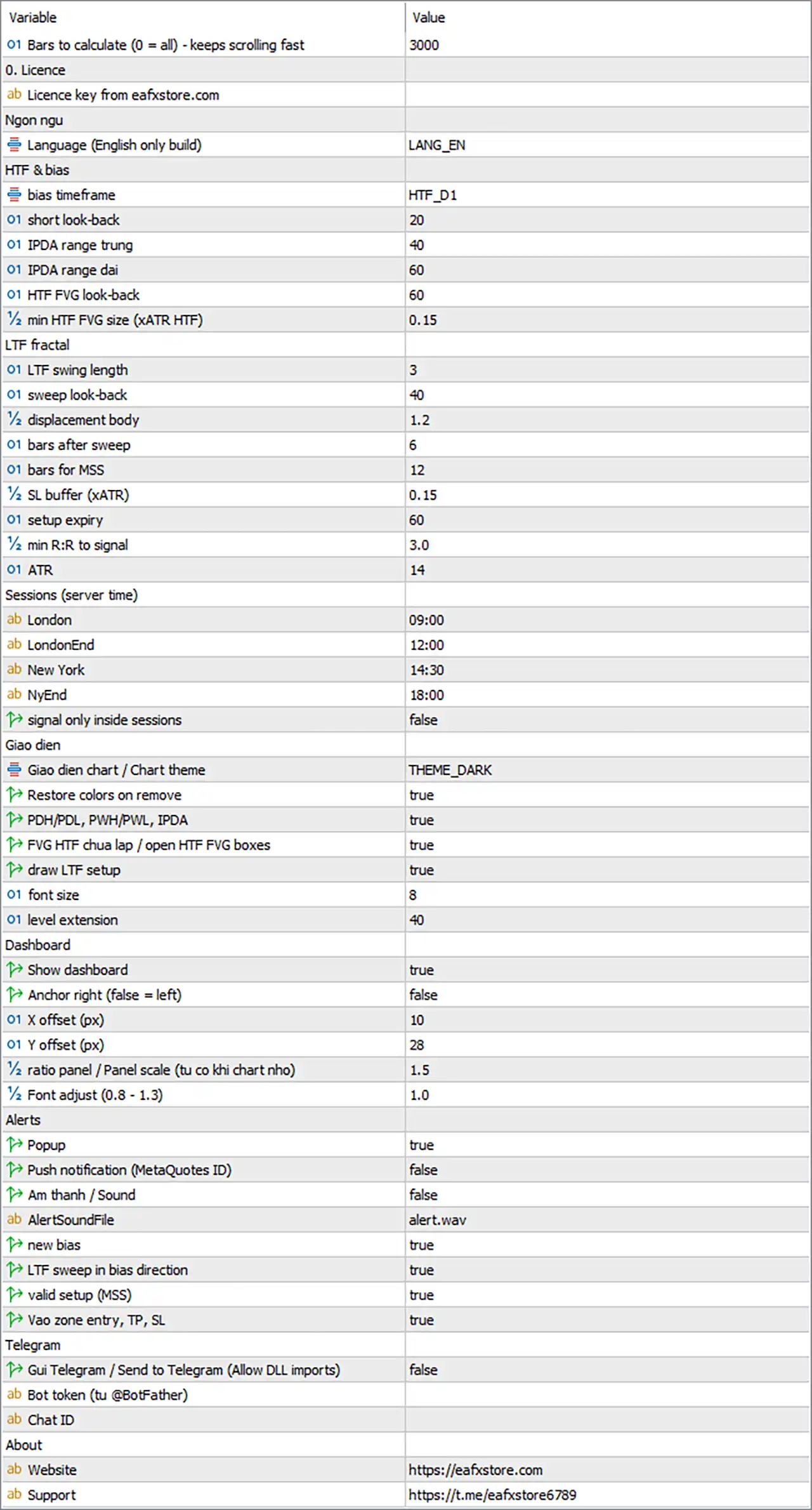
🔹 Bars to calculate (0 = all) – keeps scrolling fast [MaxBarsCalc] — Default: 3000 — Controls how many chart bars are processed when the indicator loads. 3000 keeps loading and scrolling faster, while 0 processes the entire history and may be slower. Recommended: 1000–5000.
🔢 Licence
🔹 Licence key from eafxstore.com [InpLicenseKey] — Default: (empty) — Enter the personal licence key exactly as received. Spaces are trimmed and letters are automatically converted to uppercase. The indicator will not start without a valid licence key.
🔢 Language
🔹 Language (English only build) [Lang] — Default: LANG_EN — Controls the language used by the dashboard, chart labels and alerts. This build is English-only, so keep LANG_EN.
🔢 HTF & Bias
These settings control the Higher Timeframe (HTF) used for market bias, IPDA ranges, PDH/PDL and HTF Fair Value Gaps.
🔹 Bias timeframe [HtfPeriod] — Default: HTF_D1 — Sets the higher timeframe used for bias, PDH/PDL, IPDA ranges and HTF FVGs. Scalping M1–M5: HTF_H4; Intraday M5–M15: HTF_D1; Swing H1–H4: HTF_W1. The HTF should always be higher than the chart timeframe.
🔹 Short look-back [IpdaShort] — Default: 20 — Sets the number of HTF bars used for the short IPDA range, which is also used as the Premium/Discount dealing range. Classic value: 20.
🔹 IPDA range trung (mid range) [IpdaMid] — Default: 40 — Sets the number of HTF bars used for the middle IPDA range. Classic value: 40. Keep this value larger than IpdaShort.
🔹 IPDA range dai (long range) [IpdaLong] — Default: 60 — Sets the number of HTF bars used for the long IPDA range. Classic value: 60. The broker should provide at least 60 HTF bars of history.
🔹 HTF FVG look-back [HtfFvgLook] — Default: 60 — Controls how many HTF bars back the indicator searches for open Fair Value Gaps. Higher values can find older gaps but may make the chart more crowded. Recommended: 30–100.
🔹 Min HTF FVG size (xATR HTF) [HtfFvgMinATR] — Default: 0.15 — Sets the minimum HTF FVG size as a fraction of the average HTF range. 0.15 means the gap must be at least 15% of an average HTF bar. Use 0.25–0.35 for fewer, more significant gaps or 0.10 to display more gaps.
🔢 LTF Fractal
These settings control the lower-timeframe reversal process, including sweep, displacement, MSS and entry. ATR in this section refers to the chart-timeframe ATR.
🔹 LTF swing length [PivLen] — Default: 3 — Controls how many bars on each side are required to confirm a swing high or low. 2 finds more and smaller swings, while 4–5 finds fewer and more significant swings. Recommended: 2–5.
🔹 Sweep look-back [SweepLook] — Default: 40 — Controls how many bars back the indicator searches for a swing that can be swept and for the swing used as the MSS level. Recommended: 30–60.
🔹 Displacement body [DispATR] — Default: 1.2 — Sets the minimum displacement candle body as a multiple of ATR. Use 1.4–1.6 for volatile markets such as gold and indices, or 1.0 for calmer pairs.
🔹 Bars after sweep [DispWithin] — Default: 6 — Sets the maximum number of bars after the sweep in which the displacement candle must appear. If it takes longer, the setup is cancelled. Recommended: 4–8.
🔹 Bars for MSS [MssWithin] — Default: 12 — Sets the maximum number of bars after the displacement candle in which price must close beyond the MSS level. Recommended: 8–15.
🔹 SL buffer (xATR) [SlBufferATR] — Default: 0.15 — Adds extra distance beyond the sweep extreme when placing the Stop Loss. A larger value gives the SL more room but can reduce the R:R. Recommended: 0.10–0.25.
🔹 Setup expiry [MaxSetupBars] — Default: 60 — Sets the maximum number of bars from the sweep to the entry. If price does not return to the FVG within this period, the setup is cancelled. Recommended: 40–80.
🔹 Min R:R to signal [MinRR] — Default: 3.0 — Sets the minimum reward-to-risk ratio required for a valid setup. Setups below this value are rejected. Recommended: 2.5–5.0.
🔹 ATR [AtrLen] — Default: 14 — Sets the ATR period used for measuring displacement size and calculating the SL buffer. Standard value: 14.
🔢 Sessions (Server Time)
Session times use the broker's server time, shown in Market Watch, and use the 24-hour HH:MM format.
🔹 London [LondonStart] — Default: 09:00 — Sets the start of the London session window.
🔹 London End [LondonEnd] — Default: 12:00 — Sets the end of the London session window.
🔹 New York [NyStart] — Default: 14:30 — Sets the start of the New York session window.
🔹 New York End [NyEnd] — Default: 18:00 — Sets the end of the New York session window.
🔹 Signal only inside sessions [OnlySessions] — Default: false — When enabled, new sweeps and setups are searched for only during the London and New York sessions. Existing valid setups continue to be tracked after the session ends. Recommended: true for scalping and intraday, false for swing trading.
Server Time Example: The default times assume approximately GMT+2 in winter / GMT+3 in summer. For a GMT+0 server, subtract 2 or 3 hours: London is approximately 07:00–10:00, and New York is approximately 12:30–16:00.
🔢 Display
These settings control the chart appearance and the information displayed by the indicator.
🔹 Chart theme [Theme] — Default: THEME_DARK — Controls the chart colour theme. THEME_NONE keeps the existing colours, while THEME_DARK, THEME_MIDNIGHT and THEME_LIGHT apply matching background, grid and candle colours.
🔹 Restore colors on remove [RestoreTheme] — Default: true — Restores the original chart colours when the indicator is removed.
🔹 PDH/PDL, PWH/PWL, IPDA [ShowHtfLevels] — Default: true — Displays PDH/PDL as solid lines, PWH/PWL as dashed lines, IPDA range lines as dotted purple lines and the DOL as a thick gold line.
🔹 FVG HTF chua lap / open HTF FVG boxes [ShowHtfFvg] — Default: true — Displays unfilled HTF FVGs as shaded boxes, with green for bullish FVGs and red for bearish FVGs.
🔹 Draw LTF setup [ShowSetup] — Default: true — Displays the current LTF setup, including the sweep level, FVG box, MSS line and, once valid, the entry, SL and TP lines.
🔹 Font size [LabelFont] — Default: 8 — Controls the font size of labels displayed on chart lines and boxes. Recommended: 7–10.
🔹 Level extension [ExtendBars] — Default: 40 — Controls how many bars to the right the HTF lines and boxes extend so that labels remain readable.
🔢 Dashboard
These settings control the dashboard visibility, position, size and text.
🔹 Show dashboard [ShowDash] — Default: true — Shows or hides the information dashboard.
🔹 Anchor right (false = left) [DashRight] — Default: false — Places the dashboard on the right side when true and on the left side when false.
🔹 X offset (px) [DashX] — Default: 10 — Controls the horizontal distance in pixels from the selected chart edge.
🔹 Y offset (px) [DashY] — Default: 28 — Controls the vertical distance in pixels from the top of the chart.
🔹 Ratio panel / Panel scale [DashScale] — Default: 1.5 — Controls the dashboard size. The panel automatically shrinks when the chart is too small. Recommended: 1.0 for laptops and 1.5 for large monitors.
🔹 Font adjust (0.8–1.3) [DashFontAdj] — Default: 1.0 — Adjusts the text size inside the dashboard without changing the panel size. Use 0.9 if the text looks crowded and 1.1–1.2 if the text looks too small.
Moving the Dashboard
The dashboard can be moved by dragging its header with the mouse.
The manually saved position overrides:
🔹 DashX
🔹 DashY
🔹 DashRight
To return to the original input position:
🔹 Press F3 to open Global Variables.
🔹 Delete the two variables beginning with OMFRAC_DASHX_ and OMFRAC_DASHY_.
🔹 Reload the indicator.
🔢 Alerts
The first four settings control how alerts are delivered, while the final four settings control which events trigger alerts. Alerts are sent only for new live events, not historical events recalculated when the indicator loads.
🔹 Popup [AlertPopup] — Default: true — Displays a MetaTrader alert window when an alert is triggered.
🔹 Push notification (MetaQuotes ID) [AlertPush] — Default: false — Sends alerts to the MetaTrader mobile app. A MetaQuotes ID must first be entered under Tools → Options → Notifications, with push notifications enabled.
🔹 Am thanh / Sound [AlertSoundOn] — Default: false — Plays a sound file when an alert is triggered.
🔹 AlertSoundFile [AlertSoundFile] — Default: alert.wav — Specifies the sound file used for alerts. The file must be stored in the terminal's Sounds folder, such as alert.wav, alert2.wav or news.wav.
🔹 New bias [AlertBias] — Default: true — Sends an alert when the daily bias changes and includes the reason, such as sweep-reversal or expansion.
🔹 LTF sweep in bias direction [AlertSweep] — Default: true — Provides an early warning when a lower-timeframe swing is swept in the direction of the current bias. The displacement condition still needs to occur.
🔹 Valid setup (MSS) [AlertSetup] — Default: true — Sends an alert when the setup passes the MSS and R:R filters. The alert includes Entry, SL, TP, DOL name and R:R. This is the main setup alert.
🔹 Entry zone, TP, SL [AlertEntry] — Default: true — Sends alerts when price returns to the entry FVG and when the tracked trade reaches TP or SL.
🔢 Telegram
Telegram can send enabled indicator alerts to a Telegram chat.
🔹 Send to Telegram (Allow DLL imports) [TgEnable] — Default: false — Sends every enabled alert to Telegram. Allow DLL imports is required. When enabled, a TEST TG button appears in the dashboard footer.
🔹 Bot token (from @BotFather) [TgToken] — Default: (empty) — Enter the token of the Telegram bot created through @BotFather.
🔹 Chat ID [TgChatID] — Default: (empty) — Specifies where Telegram messages are sent. This can be a personal chat ID, group ID, usually beginning with -, or channel ID.
Setting Up Telegram
🔹 Open @BotFather in Telegram.
🔹 Send /newbot and follow the instructions.
🔹 Copy the generated bot token into TgToken.
🔹 Open a chat with the new bot and press Start.
🔹 For a group or channel, add the bot as required.
🔹 Get the Chat ID, for example using @userinfobot.
🔹 Enter the Chat ID into TgChatID.
🔹 Set TgEnable to true.
🔹 Click OK.
🔹 Press TEST TG on the dashboard.
If successful, the indicator will display:
“Telegram: test message sent!”
If the test fails, check the Experts tab for details.
🔢 About
🔹 Website [AboutWeb] — Default: https://eafxstore.com — Specifies the website opened by the WEB button in the dashboard footer.
🔹 Support [AboutTelegram] — Default: https://t.me/eafxstore6789 — Specifies the support link opened by the TELEGRAM button in the dashboard footer.
🔢 Recommended Presets
The following settings are provided as starting points for different trading styles.
| Setting | Scalping M1–M5 | Intraday M5–M15 | Swing H1–H4 |
|---|---|---|---|
| HtfPeriod | HTF_H4 |
HTF_D1 |
HTF_W1 |
| PivLen | 2 |
3 |
4 |
| SweepLook | 30 |
40 |
50 |
| DispATR | 1.4 |
1.2 |
1.1 |
| DispWithin | 4 |
6 |
6 |
| MssWithin | 8 |
12 |
12 |
| SlBufferATR | 0.20 |
0.15 |
0.12 |
| MaxSetupBars | 40 |
60 |
80 |
| MinRR | 3.0 |
3.0 |
2.5 |
| OnlySessions | true |
true |
false |
| HtfFvgMinATR | 0.20 |
0.15 |
0.15 |
🎯 Scalping – M1 to M5
🔹 HtfPeriod — HTF_H4
🔹 PivLen — 2
🔹 SweepLook — 30
🔹 DispATR — 1.4
🔹 DispWithin — 4
🔹 MssWithin — 8
🔹 SlBufferATR — 0.20
🔹 MaxSetupBars — 40
🔹 MinRR — 3.0
🔹 OnlySessions — true
🔹 HtfFvgMinATR — 0.20
🎯 Intraday – M5 to M15
🔹 HtfPeriod — HTF_D1
🔹 PivLen — 3
🔹 SweepLook — 40
🔹 DispATR — 1.2
🔹 DispWithin — 6
🔹 MssWithin — 12
🔹 SlBufferATR — 0.15
🔹 MaxSetupBars — 60
🔹 MinRR — 3.0
🔹 OnlySessions — true
🔹 HtfFvgMinATR — 0.15
🎯 Swing – H1 to H4
🔹 HtfPeriod — HTF_W1
🔹 PivLen — 4
🔹 SweepLook — 50
🔹 DispATR — 1.1
🔹 DispWithin — 6
🔹 MssWithin — 12
🔹 SlBufferATR — 0.12
🔹 MaxSetupBars — 80
🔹 MinRR — 2.5
🔹 OnlySessions — false
🔹 HtfFvgMinATR — 0.15
Important: These are starting points. Forward-test the indicator on a demo account and adjust the settings for each symbol, especially DispATR and SlBufferATR when trading volatile instruments.
🔢 Troubleshooting
🔹 “Please enter your licence key.” — Open the indicator properties with Ctrl+I, select the indicator, click Edit, and enter the licence key.
🔹 “Please tick Allow DLL imports...” — Enable Allow DLL imports under Tools → Options → Expert Advisors and in the indicator's Common tab, then reattach the indicator.
🔹 “Cannot reach the licence server.” — Check the internet connection and firewall. If a previous licence check succeeded, the indicator can continue working during the grace period.
🔹 “System clock check failed...” — The computer clock may have been moved backwards. Set the correct date and time, preferably using automatic time synchronisation, then restart MetaTrader 5.
🔹 Dashboard shows “NO BIAS”. — The latest HTF candle did not provide a clear direction, such as an inside bar. The indicator is correctly standing aside; wait for the next HTF candle.
🔹 No setups appear. — Check that the bias is not neutral, confirm that OnlySessions and the session times match the broker's server time, then consider lowering DispATR or MinRR slightly.
🔹 Telegram: send failed. — Check TgToken and TgChatID, make sure the bot has been started with Start, and confirm that Allow DLL imports is enabled. Check the Experts tab for additional details.
🔹 Panel is too big or too small. — Adjust DashScale and DashFontAdj. The dashboard also automatically shrinks on small charts.
🔢 Quick Strategy Flow
HTF Bias → LTF Sweep → Displacement → MSS → FVG Entry → SL / TP
This is the simplest way to understand the main logic behind the Omega Fractal Break settings:
🔹 HTF Bias — Determines the higher-timeframe market direction.
🔹 LTF Sweep — Looks for a lower-timeframe swing being swept.
🔹 Displacement — Confirms a strong move after the sweep.
🔹 MSS — Confirms that price has moved beyond the required market-structure level.
🔹 FVG Entry — Tracks the return toward the relevant Fair Value Gap.
🔹 SL / TP — Defines the trade protection and target levels based on the setup and DOL.
This structure makes the individual inputs easier to understand because each setting belongs to a specific stage of the overall setup.