

🔢 Zor AI EA MT5 – Complete Settings Guide and Parameter Explanation
Zor AI EA is an advanced automated trading robot for MetaTrader 5 that combines AI-inspired price action analysis with intelligent risk management, spread protection, news filtering and holiday-aware trading.
The EA offers extensive customization options, allowing traders to optimize trading conditions, control risk exposure, and avoid high-volatility events while maintaining stable automated performance.
🔢 Zor AI EA MT5 Parameters Explained
Below are the details of the parameters in the advisor’s trading system settings table:
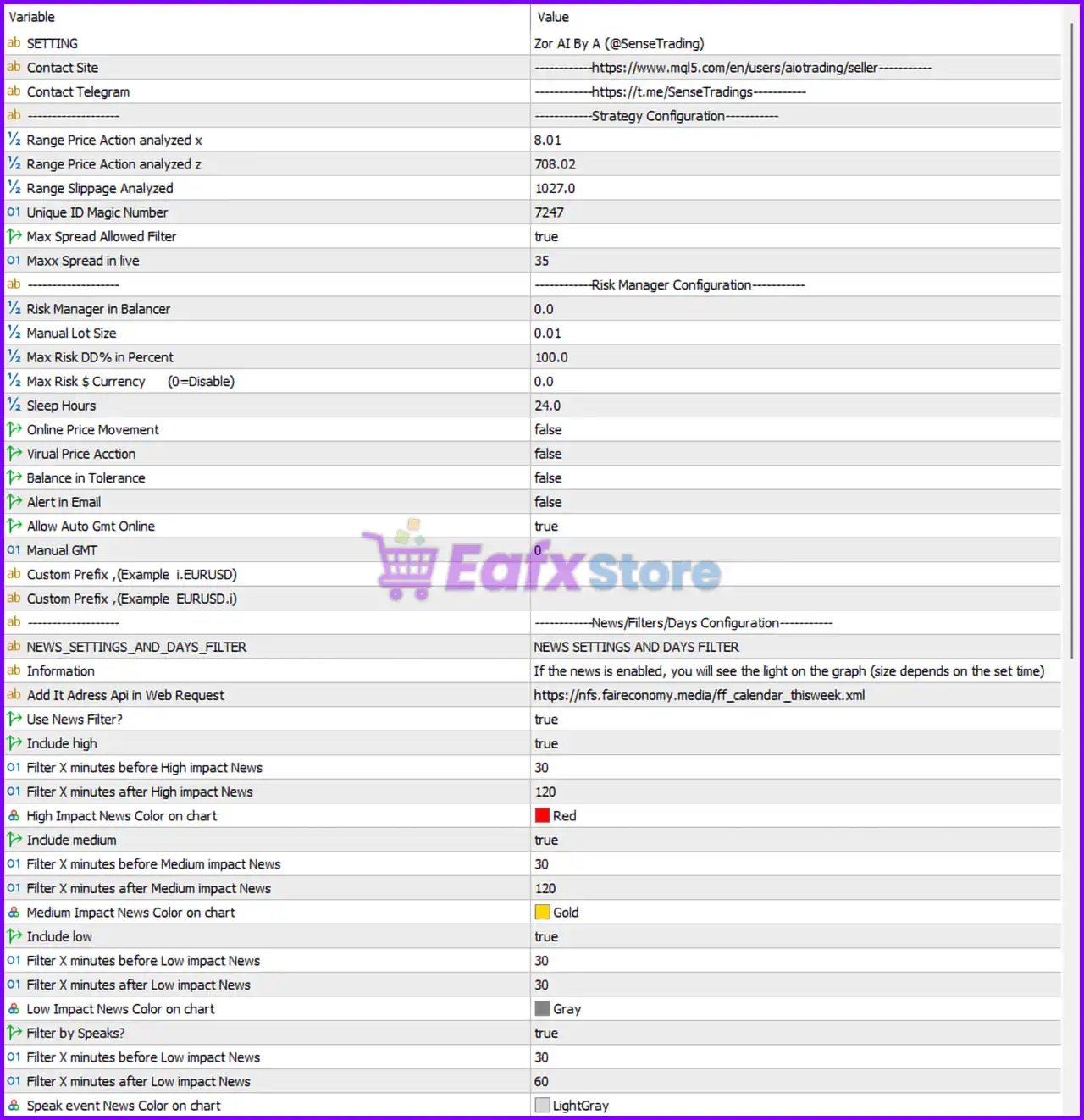
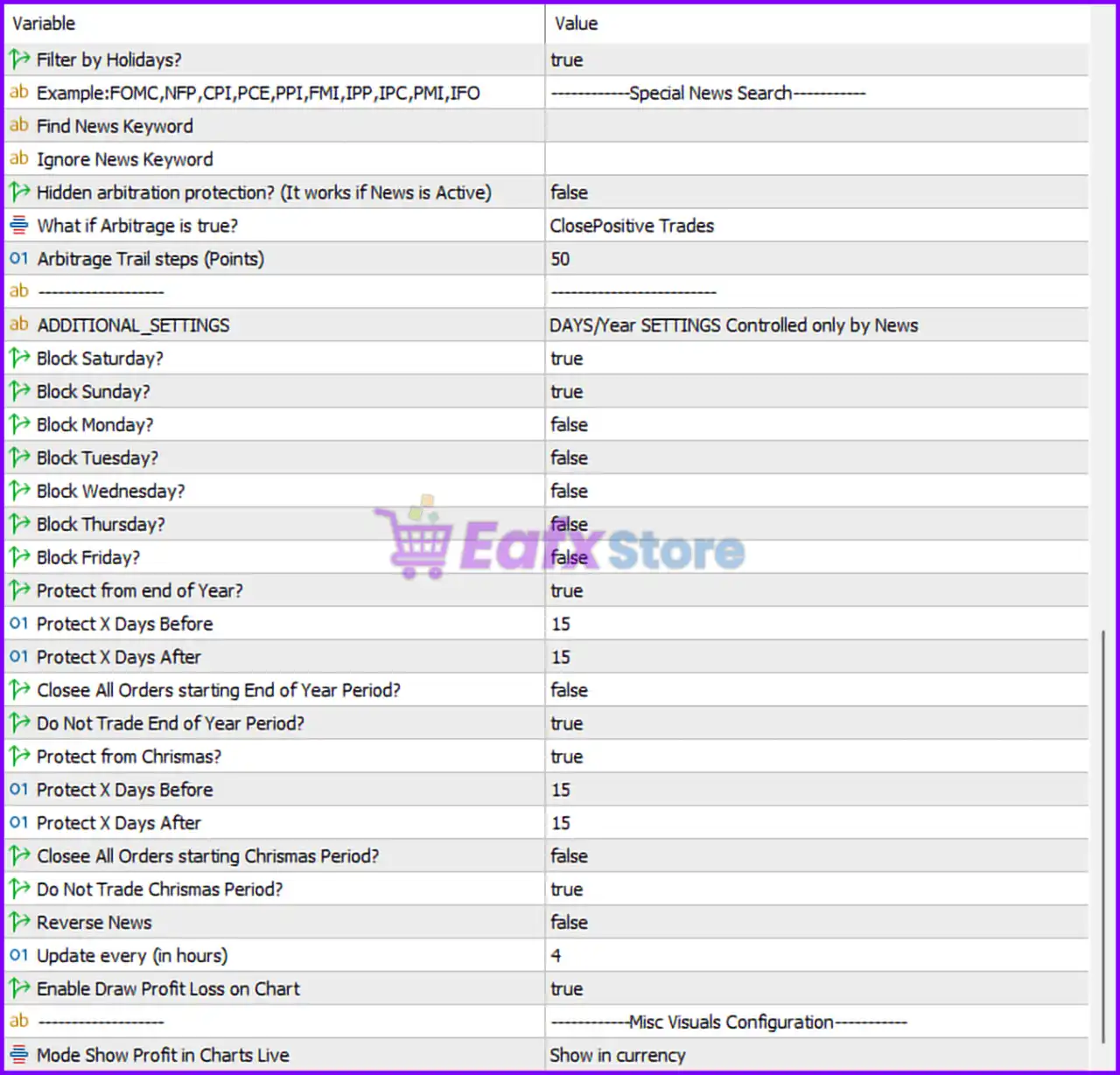
🔶 Strategy Configuration
🔹 Range Price Action analyzed x = 8.01 – Defines the X-axis analytical range used by the AI price action engine.
🔹 Range Price Action analyzed z = 708.02 – Specifies the Z-axis analytical range used during market evaluation.
🔹 Range Slippage Analyzed = 1027.0 – Sets the slippage analysis range used before executing trades.
🔹 Unique ID Magic Number = 7247 – Unique identifier allowing the EA to manage only its own positions.
🔹 Max Spread Allowed Filter = true – Enables spread protection before opening new trades.
🔹 Maxx Spread in live = 35 – Maximum acceptable live spread for order execution.
🔶 Risk Manager Configuration
🔹 Risk Manager in Balancer = 0.0 – Risk balancing feature is disabled.
🔹 Manual Lot Size = 0.01 – Fixed trading volume is 0.01 lots.
🔹 Max Risk DD% in Percent = 100.0 – Maximum permitted account drawdown is 100.0%.
🔹 Max Risk $ Currency (0=Disable) = 0.0 – Currency-based maximum loss protection is disabled.
🔹 Sleep Hours = 24.0 – Internal monitoring cycle is configured for 24.0 hours.
🔹 Online Price Movement = false – Real-time online price movement monitoring is disabled.
🔹 Virtual Price Action = false – Virtual price action simulation is disabled.
🔹 Balance in Tolerance = false – Balance tolerance verification is disabled.
🔹 Alert in Email = false – Email notifications are disabled.
🔹 Allow Auto GMT Online = true – Automatically detects broker GMT offset.
🔹 Manual GMT = 0 – Manual GMT adjustment is set to 0.
🔹 Custom Prefix (Example i.EURUSD) = blank – Allows custom broker symbol prefixes when required.
🔹 Custom Prefix (Example EURUSD.i) = blank – Allows custom broker symbol suffixes when required.
🔶 News, Filters & Days Configuration
🔹 NEWS_SETTINGS_AND_DAYS_FILTER – Main configuration section for economic news and trading day filters.
🔹 Information – Explains that news events will appear on the trading chart when enabled.
🔹 Add It Address Api in Web Request = https://nfs.faireconomy.media/ff_calendar_thisweek.xml – XML news feed used by the EA.
🔹 Use News Filter? = true – Enables automatic economic news filtering.
🔹 Include high = true – Filters high-impact economic news.
🔹 Filter X minutes before High impact News = 30 – Stops trading 30 minutes before high-impact news.
🔹 Filter X minutes after High impact News = 120 – Resumes trading 120 minutes after high-impact events.
🔹 High Impact News Color on chart = Red – Displays high-impact events using Red.
🔹 Include medium = true – Enables medium-impact news filtering.
🔹 Filter X minutes before Medium impact News = 30 – Stops trading 30 minutes before medium-impact events.
🔹 Filter X minutes after Medium impact News = 120 – Resumes trading 120 minutes after medium-impact events.
🔹 Medium Impact News Color on chart = Gold – Uses Gold to display medium-impact news.
🔹 Include low = true – Enables low-impact news filtering.
🔹 Filter X minutes before Low impact News = 30 – Stops trading 30 minutes before low-impact news.
🔹 Filter X minutes after Low impact News = 30 – Resumes trading 30 minutes afterward.
🔹 Low Impact News Color on chart = Gray – Displays low-impact events in Gray.
🔹 Filter by Speaks? = true – Enables filtering for speeches by central bank officials and policymakers.
🔹 Filter X minutes before Speeches = 30 – Stops trading 30 minutes before speech events.
🔹 Filter X minutes after Speeches = 60 – Waits 60 minutes after speeches before trading again.
🔹 Speak event News Color on chart = LightGray – Displays speech events in LightGray.
🔶 Holiday & Special News Protection
🔹 Filter by Holidays? = true – Enables holiday-aware trading protection.
🔹 Example: FOMC, NFP, CPI, PCE, PPI, FMI, IPP, IPC, PMI, IFO – Lists common economic events recognized by the filter.
🔹 Find News Keyword = blank – Allows traders to define custom news keywords.
🔹 Ignore News Keyword = blank – Allows selected keywords to be excluded from filtering.
🔶 Arbitrage Protection
🔹 Hidden arbitration protection? (It works if News is Active) = false – Hidden arbitrage protection is disabled.
🔹 What if Arbitrage is true? = ClosePositiveTrades – Closes profitable positions if arbitrage conditions are detected.
🔹 Arbitrage Trail steps (Points) = 50 – Uses a 50-point trailing step while managing arbitrage situations.
🔶 Additional Trading Settings
🔹 Block Saturday? = true – Trading is disabled on Saturdays.
🔹 Block Sunday? = true – Trading is disabled on Sundays.
🔹 Block Monday? = false – Monday trading remains enabled.
🔹 Block Tuesday? = false – Tuesday trading remains enabled.
🔹 Block Wednesday? = false – Wednesday trading remains enabled.
🔹 Block Thursday? = false – Thursday trading remains enabled.
🔹 Block Friday? = false – Friday trading remains enabled.
🔶 End-of-Year Protection
🔹 Protect from end of Year? = true – Activates year-end trading protection.
🔹 Protect X Days Before = 15 – Begins protection 15 days before year-end.
🔹 Protect X Days After = 15 – Ends protection 15 days after year-end.
🔹 Closee All Orders starting End of Year Period? = false – Existing positions remain open during protection.
🔹 Do Not Trade End of Year Period? = true – Prevents new trades during the protected period.
🔶 Christmas Protection
🔹 Protect from Christmas? = true – Enables Christmas holiday protection.
🔹 Protect X Days Before = 15 – Begins protection 15 days before Christmas.
🔹 Protect X Days After = 15 – Ends protection 15 days after Christmas.
🔹 Closee All Orders starting Christmas Period? = false – Existing trades are not automatically closed.
🔹 Do Not Trade Christmas Period? = true – Blocks new positions during the Christmas period.
🔶 Miscellaneous Settings
🔹 Reverse News = false – Does not reverse trade direction during news events.
🔹 Update every (in hours) = 4 – Refreshes news data every 4 hours.
🔹 Enable Draw Profit Loss on Chart = true – Displays floating profit and loss directly on the trading chart.
🔹 Mode Show Profit in Charts Live = Show in currency – Shows live profit values using the account currency.
🔢 Conclusion
Zor AI EA MT5 offers a highly configurable trading environment with AI-assisted market analysis, intelligent spread control, comprehensive economic news filtering, holiday protection and advanced risk management.
Its flexible settings allow traders to customize trading behavior according to market conditions while reducing exposure during periods of elevated volatility. Proper optimization and forward testing are recommended before deploying the EA on a live trading account.
🔢 FAQs
❓ What is Zor AI EA MT5 designed for?
Zor AI EA MT5 is an automated MetaTrader 5 trading robot that combines AI-inspired price action analysis with advanced risk and news management.
❓ Does Zor AI EA MT5 include an economic news filter?
Yes. The EA filters high, medium, and low-impact news, central bank speeches, holidays, and special economic events.
❓ Can I adjust the trading risk?
Yes. You can customize manual lot size, maximum drawdown limits, spread filtering, GMT settings, and several additional risk management parameters.
❓ Does the EA automatically detect broker time?
Yes. The Allow Auto GMT Online option automatically detects the broker's GMT offset, while manual GMT configuration is also available.
❓ Is Zor AI EA MT5 suitable for long-term automated trading?
Yes. With its comprehensive news protection, holiday filters, spread control, and configurable risk management, the EA is designed to support stable long-term automated trading when properly optimized.