



DAX Robot MT4 (Latest version) - Unlimited

Subscriptions for Special Plan
- 30 EA package is more economical!
- Special package with 99%
- Download 1 EA/Day

Subscriptions for Premium Membership
- Download Unlimited in 1 Year
- Get 100% Discount
- Get free access to all

Subscriptions for Gold Membership
- 1 Year Membership
- Get 100% Discount
- Access EA+Indicator+Course
Frequently bought together 🎁
Add these products to enhance your purchase




Quick Overview
DAX Robot MT4 is an automated trading system developed specifically for the DAX 40 index on the H1 timeframe. The DAX is one of the most actively traded indices in Europe and moves fast, which is the environment this robot was built for.
It continuously studies market conditions and opens trades through its built-in logic, which combines trend analysis, momentum and volatility based conditions. A news filter keeps it out of the market for 60 minutes before and 60 minutes after major releases.
Best For:
✅ DAX 40 and GER40 traders who want a dedicated automated system.
✅ Traders who want a built in news filter with a clear 60 minute window.
✅ Users who want control over schedule and direction for each day.
✅ Traders who want daily profit and drawdown limits on the account.
What Is DAX Robot MT4?
DAX Robot is an Expert Advisor (EA) for MetaTrader 4, fully optimized for the DAX 40 index on H1. It is designed for traders who want to take part in the market without watching the chart all day, and who prefer a systematic, rule based approach.
By automating the whole process, it removes emotional decision making from entries and exits. It works on DAX and GER40, the two names brokers commonly use for the same index.
⭐ Vendor Website: View here
⭐ Delivery time 24h-48h after payment.
⭐ Refund if not delivered.
⭐ You will receive the current version without any limitations (ID+Time).
How Does DAX Robot MT4 Work?
H1 Optimization
The system is built for the H1 timeframe. This lets it concentrate on higher quality market opportunities and cut down some of the noise of lower timeframes.
Smart Entry Filtering
Entry filters study trend direction, momentum and market structure before a position opens, to focus on setups that meet the robot’s conditions.
Volatility Monitoring
Built in volatility analysis helps the robot notice changing market conditions and adapt to quieter or busier periods.
News Filter
The robot does not open new positions around important high impact economic events. It stays inactive for 60 minutes before and 60 minutes after major releases.
Schedule and Holiday Control
Trading hours are set separately for each day of the week, and optional holiday settings help avoid thin liquidity.
Historical Trading Results Performance
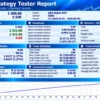
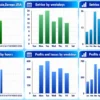
DAX Robot MT4 demonstrates strong backtest performance on DE40, generating $2,321 in net profit from a $1,000 initial deposit over six months.
The equity curve rises consistently with a reported 2.14% maximum equity drawdown and 100% winning trades, although the unusually perfect results warrant further forward testing.
DAX Robot MT4 Backtest Results
| Parameter | Results |
|---|---|
| Initial Deposit | $1,000 |
| Total Net Profit | $2,321.00 |
| Total Trades | 95 |
| Winning Trades | 100% (95 trades) |
| Equity Drawdown | 2.14% |
| Trading Symbol / Timeframe | DE40 / H1 |
| Backtest Period | Jan 1 – Jun 30, 2026 |
DAX Robot MT4 Trading Strategy
🔹 Read the trend: entry filters check the direction of the trend first.
🔹 Confirm the momentum: momentum and market structure must agree before a trade opens.
🔹 Watch the volatility: volatility analysis adjusts the robot to quiet or fast markets.
🔹 Avoid the news: no new positions for 60 minutes either side of major events.
🔹 Manage the exit: fixed Take Profit or the robot’s automated trade management, with a fixed or percentage Stop Loss.
Key Features of DAX Robot MT4
DAX H1 Optimization
Fully optimized for the H1 timeframe on the DAX 40 index.
Flexible Trade Direction
Buy only, sell only, or buy and sell modes, depending on market conditions and personal preference.
Built In Trading Schedule
Trading hours can be configured individually for every day of the week.
News Filter Protection
Avoids trading during high impact events and periods of increased uncertainty.
Holiday Trading Control
Optional settings avoid trading in low liquidity holiday conditions.
Risk Control
Built in risk management features aim to keep exposure controlled.
Daily Profit and Drawdown Protection
Optional daily profit and maximum drawdown settings let traders define daily limits.
Take Profit and Stop Loss
Fixed Take Profit levels or automated trade management, and a fixed or percentage Stop Loss.
Trading Panel
An on-chart panel shows real time statistics, market information and robot status.
How to Get the Most from DAX Robot MT4
A few steps keep the setup simple and safe.
🔹 Test on demo first: the author suggests testing on a demo account before going live.
🔹 Use a low spread account: the robot works with any forex broker and account type, and low spread conditions are recommended.
🔹 Run it on a VPS: it keeps the robot connected around the clock.
🔹 Turn on Algo Trading: add the EA to an H1 chart of the DAX and set it up following the manual.
🔹 Set only the lot size: the other parameters are meant to stay unchanged, according to the author.
🔹 Check the symbol name: the index appears as DAX or GER40, depending on the broker.
🔹 Choose the leverage with care: the author lists leverage from 1:20 up to 1:1000.
🔹 Study risk first: the risk management guide helps with choosing the lot size and daily limits.
DAX Robot MT4 Risk Management
News Protection Has Limits
The 60 minute window on each side of major events helps reduce exposure to sudden volatility.
It cannot remove gaps, slippage or surprise news. A guide to stop-loss placement explains how stops protect an account.
Daily Limits
Optional daily profit and maximum drawdown settings help define boundaries for each day.
They should be chosen before live use and checked in testing. A guide to take-profit methods shows how targets relate to risk.
Index Volatility
The DAX can move fast, particularly at the European open and around major data.
Low spread conditions and a stable VPS reduce, and do not remove, execution risk.
Lot Size
Because the lot size is the key setting, it should match the account size and the acceptable drawdown. The minimum lot is 0.01.
What Sets It Apart
🔹 A dedicated DAX design: one index, one timeframe, with the whole system built around it.
🔹 News and holiday protection: a fixed 60 minute news window and optional holiday settings.
🔹 Granular control: trading hours for each day of the week, plus buy only or sell only modes.
🔹 Daily account limits: optional profit and drawdown settings in the same package.
Strengths and Limitations
Strengths
🔹 Focused on one liquid index and one timeframe.
🔹 Built in news filter, schedule and holiday controls.
🔹 Daily profit and drawdown limits.
🔹 On-chart panel and a manual in 10 languages.
Limitations
🔹 Single market: one index offers no multi-asset diversification.
🔹 Undisclosed logic: the entry rules are described in general terms, so testing is the only way to judge them.
🔹 Event risk remains: news filters cannot stop gaps, slippage or unexpected moves.
🔹 No guarantees: nothing here promises profit.
Who Should Use DAX Robot MT4?
🔹 DAX and GER40 traders: those who want a dedicated, systematic approach to the index.
🔹 Traders without time to watch charts: users who prefer automation to constant monitoring.
🔹 Risk-aware users: those who will use the daily limits and a modest lot size.
🔹 Not for traders who: want a multi-market EA, need a guaranteed result or plan to skip testing.
Recommended Trading Conditions
For the best performance, the developer recommends:
| Features | Type |
|---|---|
| Trading platform | MetaTrader 4 (MT4) |
| Time frames | H1 (60 minute chart) |
| Currency pairs | DAX, GER40 |
| Minimum / Recommended deposit | $3,000+ |
| Minimum / Recommended leverage | Any |
| Account types | Raw, Hedging, Zero, Cent, Micro, Standard, Premium or ECN |
| Product type | NoDLL |
| Additional services | Unlock and Decompile |
| Recommended brokers | Exness Broker, Icmarkets Broker |
| Recommended VPS | MyfxVPS.com (Blue VPS, Golden VPS). Lowest Latency, 2 week Free Trial, 100% Free for 12-18 Months. |
Product Download Package?
The download package of the product suite includes:
✅ Experts: DAX Robot MT4.ex5
Final Verdict
DAX Robot MT4 is a focused tool: one index, one timeframe and a clear set of protections, from the 60 minute news window to the daily limits and the weekly schedule. It asks for very little from the trader, mainly the lot size.
Its entry logic is described only in general terms, and results depend on broker conditions and risk settings. The sensible path is the one the author suggests: test in the Strategy Tester, run on demo, then go live with a modest lot. For traders who want to automate the DAX, it is worth a close look.
🔢 DAX Robot MT4 Settings: Complete Inputs Guide
DAX Robot MT4 is an automated trading system designed for the DAX 40 index, commonly listed by brokers as DE40 or GER40. It operates on the MetaTrader 4 platform and uses configurable trading logic to analyze market trends, momentum, and volatility. The EA includes settings for order direction, position sizing, Stop Loss (SL) and Take Profit (TP) management, news protection, trading schedules, and execution control.
Understanding the DAX Robot MT4 inputs helps traders configure the trading instrument, operating hours, risk parameters, and protective features according to their broker’s conditions. This guide explains all visible parameters and preserves the exact values shown in the settings panel.
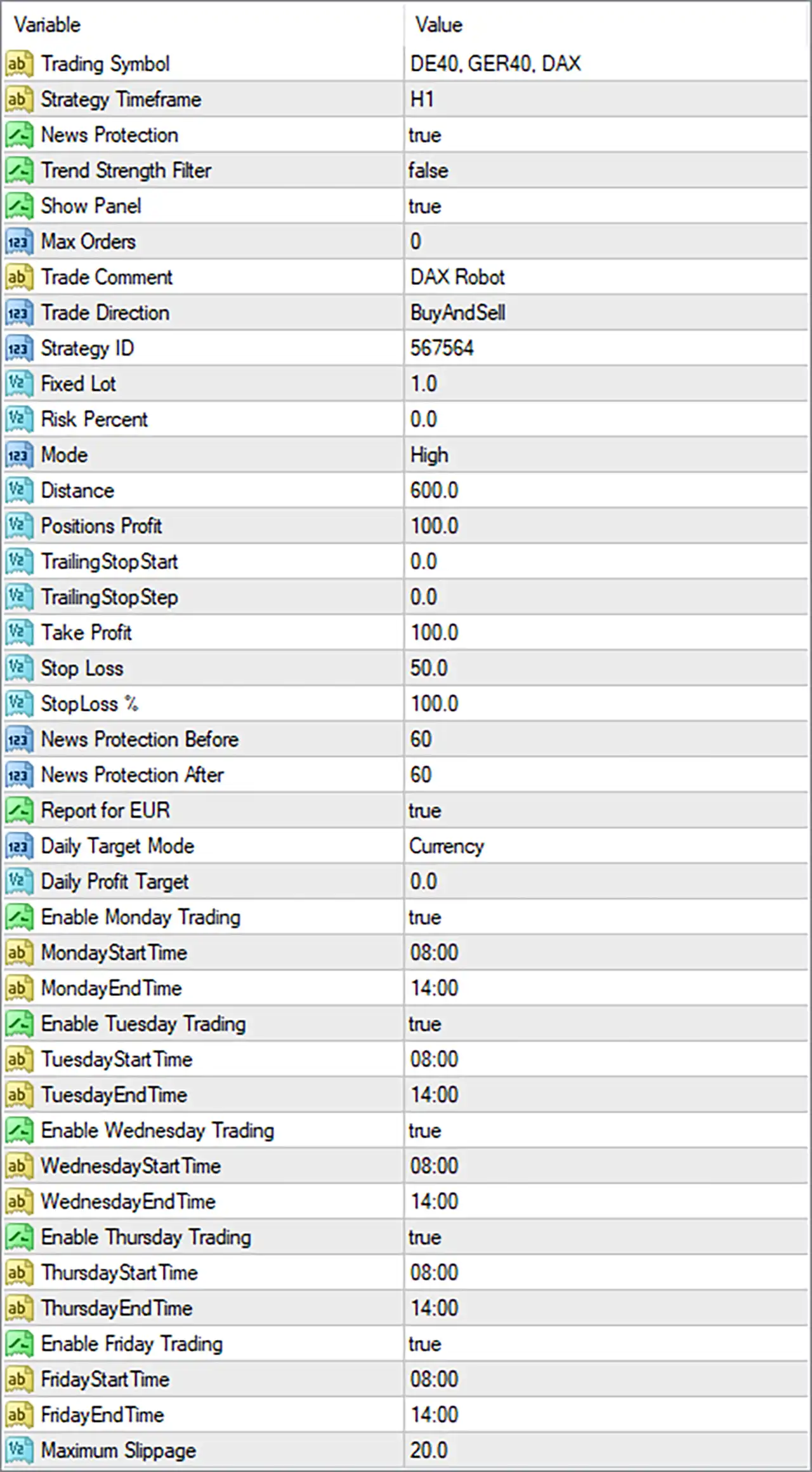
DAX Robot MT4 Settings Panel
⚙️ Trading Symbol and Strategy Settings
🔹 Trading Symbol = DE40, GER40, DAX: Specifies the supported trading symbols as DE40, GER40, and DAX. The exact symbol must match the name offered by the broker in MetaTrader 4.
🔹 Strategy Timeframe = H1: Sets the strategy timeframe to H1, or one hour. The EA uses this timeframe for its strategy-related calculations according to its internal logic.
🔹 Trade Comment = DAX Robot: Sets the order comment to DAX Robot. This label can help identify trades associated with the EA in the trading terminal and account history.
🔹 Trade Direction = BuyAndSell: Allows both buy and sell trades. The EA can consider long and short positions when the corresponding strategy conditions are satisfied.
🔹 Strategy ID = 567564: Assigns the strategy identifier 567564. This value can help the EA distinguish its trades from those managed by other strategies, depending on its order-identification logic.
🔹 Mode = High: Selects the High operating mode. This likely activates a higher-intensity or more aggressive strategy configuration, but the exact changes to entries, frequency, or exposure depend on the EA’s implementation.
⚙️ Risk Management and Position Sizing
🔹 Max Orders = 0: Sets the maximum-orders parameter to 0. The meaning of zero depends on the EA’s logic; it may represent an unlimited order count or a special automatic setting, so it should not be assumed to mean either without verification.
🔹 Fixed Lot = 1.0: Sets the fixed trading volume to 1.0 lot. If fixed-lot sizing is active, this is a substantial position size for many trading accounts, and the monetary exposure depends on the broker’s DAX contract specifications.
🔹 Risk Percent = 0.0: Sets the risk-percentage parameter to 0.0. This may disable percentage-based position sizing or indicate that another sizing method is used. The exact behavior should be confirmed from the EA’s internal rules.
🔹 Distance = 600.0: Sets the distance parameter to 600.0. This may control a price-distance threshold used by the strategy or its order-management logic. The precise unit and purpose depend on the EA’s implementation.
🔹 Positions Profit = 100.0: Sets the positions-profit threshold to 100.0. This may be used to trigger a profit-related action for managed positions or a group of positions. The currency and exact closing behavior are not specified by the input label.
🔹 Daily Target Mode = Currency: Selects Currency as the daily profit-target mode. This indicates that the daily target is configured in monetary terms rather than as a percentage, subject to the EA’s implementation.
🔹 Daily Profit Target = 0.0: Sets the daily profit target to 0.0. Zero commonly means the target is disabled, but the actual behavior depends on the EA’s daily-target logic.
⚙️ Take-Profit, Stop-Loss, and Trailing Settings
🔹 TrailingStopStart = 0.0: Sets the trailing-stop activation parameter to 0.0. This may represent an immediate activation threshold or a disabled/default value, depending on the EA’s rules.
🔹 TrailingStopStep = 0.0: Sets the trailing-stop adjustment step to 0.0. This value may disable step-based trailing adjustments or trigger special default behavior. Its precise meaning should be confirmed before live use.
🔹 Take Profit = 100.0: Sets the take-profit parameter to 100.0. This defines the configured profit-taking level or distance. The measurement unit—such as index points, broker points, or another value—depends on the EA’s implementation.
🔹 Stop Loss = 50.0: Sets the stop-loss parameter to 50.0. This specifies the configured stop-loss level or distance, subject to the EA’s exit logic and the broker’s DAX pricing conventions.
🔹 Stop Loss % = 100.0: Sets the percentage-based stop-loss parameter to 100.0. The exact interpretation is not clear from the label alone; it should not be assumed to mean a 100% account loss limit. Confirm the formula and calculation base before relying on this setting for protection.
⚙️ News Protection and Trend Filters
🔹 News Protection = true: Enables the EA’s news-protection feature. Depending on its internal rules, this may restrict or adjust trading activity around scheduled economic announcements.
🔹 Trend Strength Filter = false: Disables the trend-strength filter. The EA will not apply the additional trend-strength condition controlled by this switch, although its primary strategy may still use other market-analysis rules.
🔹 News Protection Before = 60: Sets the pre-news protection period to 60 minutes. If the news filter uses this value as expected, it can restrict trading during the hour before a relevant announcement.
🔹 News Protection After = 60: Sets the post-news protection period to 60 minutes. This configures a one-hour period after a relevant announcement during which the EA may restrict trading, according to its news-protection logic.
🔹 Report for EUR = true: Enables the option labeled Report for EUR. The name suggests a setting related to EUR news reporting or event handling, but its exact purpose cannot be confirmed from the label alone.
⚙️ Trading Panel and Interface
🔹 Show Panel = true: Enables the on-chart information panel. When supported by the EA, this panel can display trading status, market information, or other strategy-related data.
⚙️ Weekly Trading Schedule
🔹 Enable Monday Trading = true: Enables trading on Monday, subject to the EA’s strategy conditions, session times, and other filters.
🔹 MondayStartTime = 08:00: Sets Monday’s trading start time to 08:00. The EA uses this value to define the beginning of the configured Monday trading window, according to its time reference.
🔹 MondayEndTime = 14:00: Sets Monday’s trading end time to 14:00, creating a configured window from 08:00 to 14:00.
🔹 Enable Tuesday Trading = true: Enables trading on Tuesday when the applicable strategy conditions and restrictions are satisfied.
🔹 TuesdayStartTime = 08:00: Sets Tuesday’s trading start time to 08:00.
🔹 TuesdayEndTime = 14:00: Sets Tuesday’s trading end time to 14:00, defining a six-hour scheduled window.
🔹 Enable Wednesday Trading = true: Enables trading on Wednesday, subject to the EA’s trading rules and filters.
🔹 WednesdayStartTime = 08:00: Sets Wednesday’s trading start time to 08:00.
🔹 WednesdayEndTime = 14:00: Sets Wednesday’s trading end time to 14:00.
🔹 Enable Thursday Trading = true: Enables trading on Thursday when the relevant strategy and execution conditions permit.
🔹 ThursdayStartTime = 08:00: Sets Thursday’s trading start time to 08:00.
🔹 ThursdayEndTime = 14:00: Sets Thursday’s trading end time to 14:00.
🔹 Enable Friday Trading = true: Enables trading on Friday, subject to the configured trading window and other restrictions.
🔹 FridayStartTime = 08:00: Sets Friday’s trading start time to 08:00.
🔹 FridayEndTime = 14:00: Sets Friday’s trading end time to 14:00.
⚙️ Execution Settings
🔹 Maximum Slippage = 20.0: Sets the maximum slippage parameter to 20.0. This controls the permitted difference between the requested and executed price, according to the EA’s order-placement logic. The effective interpretation depends on how the EA measures slippage and the broker’s execution conditions.
🔢 Conclusion
DAX Robot MT4 provides configurable controls for trading DE40, GER40, or DAX instruments, operating on the H1 timeframe, managing position sizes, and applying news and trading-session filters. The displayed configuration selects Mode = High, Fixed Lot = 1.0, Take Profit = 100.0, Stop Loss = 50.0, and Maximum Slippage = 20.0.
The fixed lot of 1.0 deserves particular attention because DAX contract sizes and monetary values per point can vary significantly between brokers. In addition, Max Orders = 0, Risk Percent = 0.0, and Daily Profit Target = 0.0 require verification to determine whether these settings disable controls or invoke special default behavior. The meaning of Stop Loss % = 100.0 should also be confirmed before relying on it for risk protection.
The configured trading schedule runs from 08:00 to 14:00, Monday through Friday, while news protection is enabled for 60 minutes before and after relevant events. Before live deployment, confirm the broker’s time zone, instrument specifications, and EA-specific parameter units. Demo testing and independent risk controls are recommended.
User Reviews
Only logged in customers who have purchased this product may leave a review.
❓ What is DAX Robot MT4?
An automated Expert Advisor for MetaTrader 4, developed for the DAX 40 index on the H1 timeframe.
❓ Which market does DAX Robot MT4 trade?
The DAX 40 index, which brokers may list as DAX or GER40.
❓ Which timeframe does DAX Robot MT4 use?
H1
❓ How does DAX Robot MT4 choose its trades?
It combines trend direction, momentum, market structure and volatility conditions through its built in logic.
❓ Does DAX Robot MT4 have a news filter?
Yes. It opens no new positions for 60 minutes before and 60 minutes after major high impact events.
❓ Can the trading hours of DAX Robot MT4 be changed?
Yes. Hours can be set separately for each day of the week, and optional holiday settings are available.
❓ Can DAX Robot MT4 trade only buy or only sell?
Yes. Buy only, sell only and buy and sell modes are available.
❓ What risk controls does DAX Robot MT4 include?
A fixed or percentage Stop Loss, fixed Take Profit or automated management, and optional daily profit and maximum drawdown limits.
❓ What settings does DAX Robot MT4 need?
According to the author, only the lot size. The other parameters are meant to stay unchanged.
❓ Which account suits DAX Robot MT4?
Any forex broker and account type can be used, with a low spread account recommended. Leverage from 1:20 up to 1:1000 is listed.
-
 Original price was: $8,000.00.$249.00Current price is: $249.00.
-
 Original price was: $7,000.00.$249.00Current price is: $249.00.
-
 Original price was: $8,000.00.$249.00Current price is: $249.00.
-
 Original price was: $25,000.00.$249.00Current price is: $249.00.
-
 3Original price was: $199.00.$159.00Current price is: $159.00.
-
 1Original price was: $699.00.$249.00Current price is: $249.00.
-
 27Original price was: $60,000.00.$239.00Current price is: $239.00.
-
 6Original price was: $1,000.00.$599.00Current price is: $599.00.
There are no reviews yet.